Vibe Coding with Claude Code Voice Mode and VibeKeys Pro

Vibe coding is about staying in flow — describing what you want, letting the AI build it, and never breaking your train of thought. Voice typing takes that further: instead of typing your prompts, you just speak them. The less friction between your idea and Claude, the better the session.
Claude Code has built-in voice support. With the right key mapping on VibeKeys Pro, you can trigger it and speak hands-free — no keyboard reach required.
Voice Typing and Vibe Coding
Typing is still a context switch. You stop thinking about the problem, shift to the keyboard, form sentences with your fingers, and then go back to thinking. Voice typing removes that switch. You stay in idea mode the whole time.
For vibe coding specifically — where you are describing architecture, asking for changes, or walking Claude through a problem — speaking feels more natural than typing. You think in sentences, not keystrokes.
The challenge is that voice input on a laptop still requires you to reach for the keyboard to start and stop recording. VibeKeys Pro solves that with dedicated physical controls.
The Setup
Step 1: Download the VibeKeys Configurator
Download the VibeKeys Configurator for macOS or Windows. Launch the app and it will detect your connected VibeKeys Pro automatically.
Then configure two key mappings:
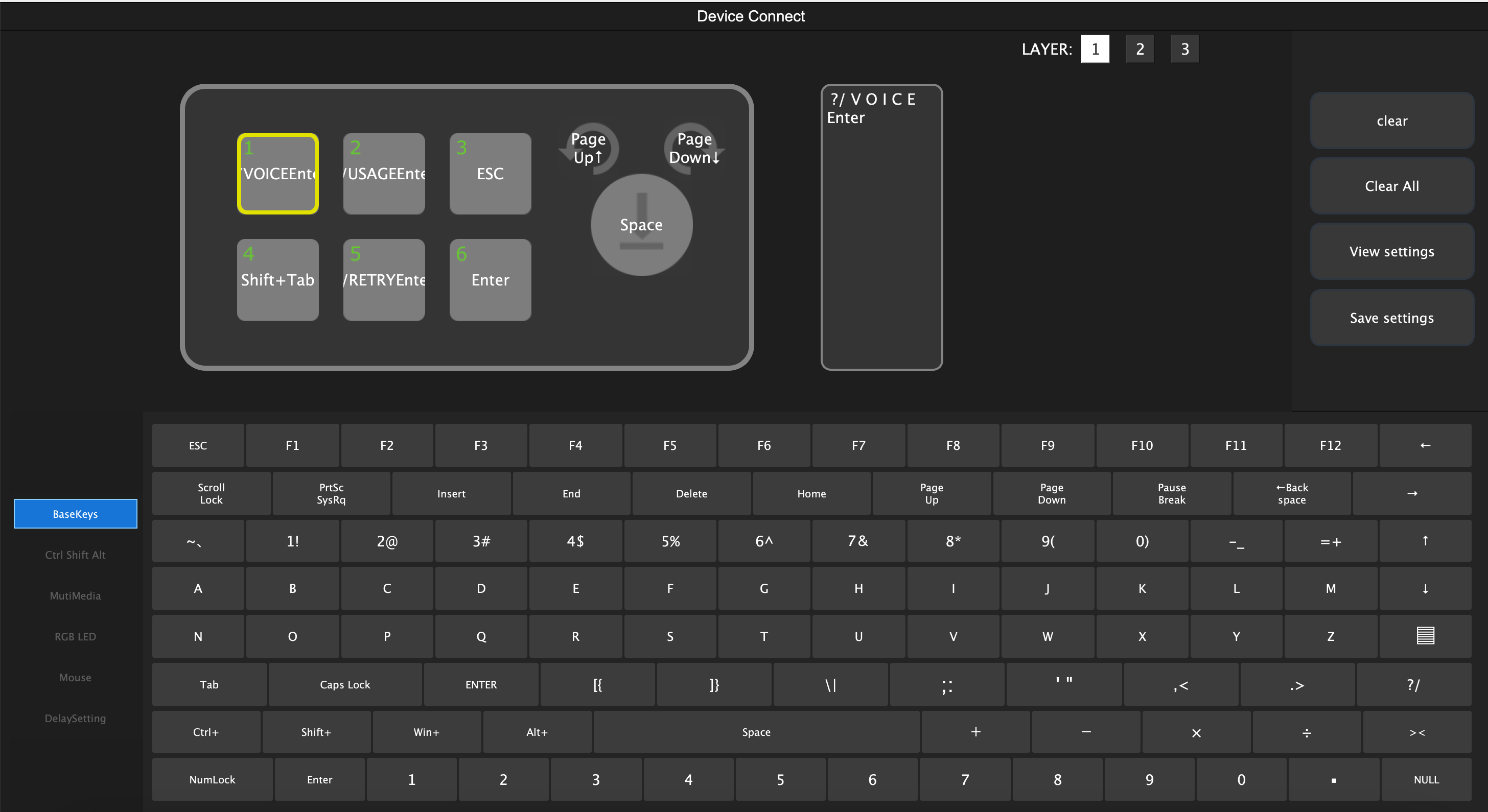
Step 2: Voice key → /voice + Enter
Assign your dedicated voice button to send the /voice command followed by Enter. This enters Claude Code's voice mode in one press.
Step 3: Knob press → Space (hold)
Once in voice mode, hold down the knob while you speak. Claude Code uses the spacebar as a push-to-talk trigger — hold to record, release to send.
This key map shows one way to customize VibeKeys Pro for Claude Code voice mode, with dedicated buttons for voice entry, usage prompts, retry, and navigation.
The Workflow
- Press the voice key — Claude Code enters voice mode
- Hold the knob while speaking your prompt
- Release the knob — transcription is sent
- Repeat
No keyboard. No mouse. Just speak and vibe.
You can see the workflow in action here:
Why This Works Well
The knob is a natural push-to-talk control. It sits under your thumb, requires no visual confirmation, and the physical feedback tells you when you are recording. Compared to reaching for a keyboard shortcut mid-thought, it keeps the speaking flow intact.
The voice key handles the mode switch so you never have to type /voice manually. One press and you are ready to speak.
This is the kind of workflow VibeKeys Pro was built for — turning repetitive interactions into physical muscle memory.