VibeKeys v0.4.0: Use Claude Code and Codex from Anywhere

VibeKeys Max v0.4.0 lets you reach Claude Code and Codex from anywhere. Leave your PC running at your desk, take VibeKeys Max with you, and pick up any agent session you have going — from the couch, a café, a hotel, a phone hotspot. Anywhere it finds WiFi, it comes online, discovers every session you're running, and puts them all one knob-turn away.
Any network, no port forwarding
Until now, VibeKeys Max had to reach your PC directly — realistically, that meant the same LAN or your own tunneling setup. In 0.4.0 both ends connect outward to an MQTT broker instead, and that one change is what makes the device portable:
- It works from wherever you are. VibeKeys Max drives your PC's terminals from a café, hotel, or phone hotspot. No port on your PC is exposed, no firewall or VPN configuration.
- Nothing extra to run. vibetty can host the broker itself, so there's no service to sign up for or install. Point both ends at a hosted MQTT service instead if you'd rather.
- Sessions find each other. Start a session after VibeKeys Max is already connected and it shows up on its own. Close one and it disappears — nothing stale left in the picker.
Setting up the broker on both ends: Remote Control Mode.
All your sessions, on one screen
The device no longer binds to a single terminal session. Entering Remote mode opens a picker listing every session you have running:
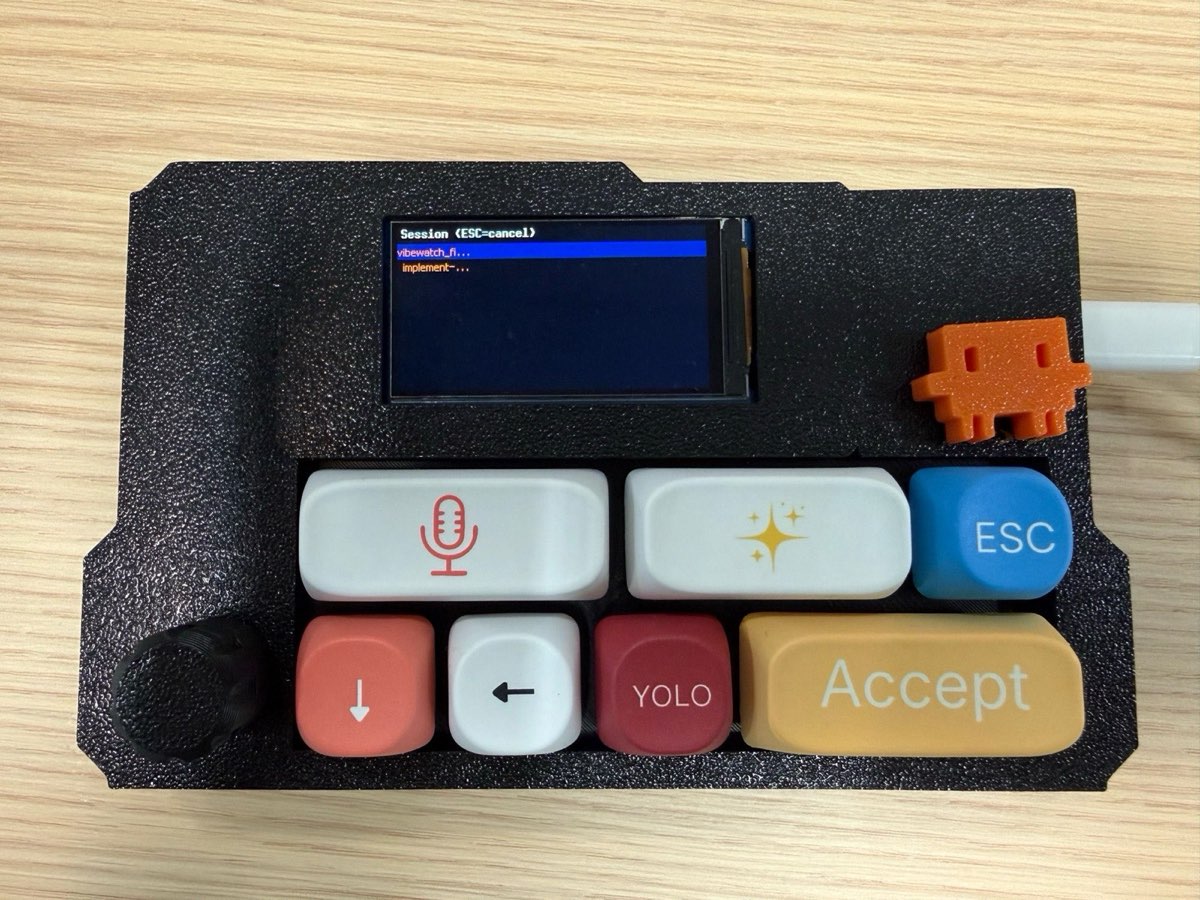
- One row per session, colored by what the agent is doing right now: white = working, orange = stopped / waiting;
- The focused row is highlighted with a blue background;
- Press the rotary knob at any time to (re)open the picker and switch sessions on the fly — no reconnecting.
To get there: start a vibetty -- claude session in each workspace you're working on, and they all show up in the picker. Or install the bundled skill and just ask your agent to start one for you. Full walkthrough: Start vibe coding.
In practice: run several agents at once, and one VibeKeys Max lets you see which are still working, check on each, and jump in — from wherever you happen to be sitting.
Text mode: light enough for café WiFi
The screen now travels as text rather than as images, and only the parts that change get sent. Remote sessions stay usable on café WiFi or a phone hotspot, and text on the screen is sharp instead of compressed. MQTT gets you connected from anywhere; this is what keeps it usable once you're there.
On the device: a new UI and real voice input
A new UI. Boot now lands on a menu with three entries — Keyboard / Remote / Setting. Setting is where WiFi networks, OTA Update, and Clear config live.
Updating without a computer. Pick OTA Update in Setting and hit download-latest — the device pulls the newest firmware straight from GitHub on its own. Uploading from a browser still works if you'd rather.
Voice input, fully wired up. Press MIC and speak: hold to talk, or tap to start and stop. Recognition now happens on VibeKeys Max itself, streaming to a speech-to-text service you configure. In Remote mode the transcript lands in an editor on the screen — turn the knob to fix a word, press ACCEPT to send. You always see what goes to your terminal before it gets there. Setup guides: Voice Input in Remote Mode and in Keyboard Mode.
Multiple WiFi profiles: office → café → home. The device keeps up to 8 WiFi credentials, list order = priority. At boot it scans and connects to the first network in range — configure your networks once, and the device follows you between places with no reconfiguring on the spot. OTA uses the same list, so updates also connect from wherever you are.
On the computer: Windows, and less setup
- Windows support: vibetty now runs on Windows, alongside Linux and macOS.
vibetty skill install: one command teaches Claude Code or Codex how to start a shareable session, so you can just ask your agent to do it.- Herdr plugin: vibetty can now be used as a plugin for Herdr (Linux and macOS).
- Try it without the hardware: a browser page shows the same session list and screen, so you can check your setup from a phone or laptop.
⚠️ Upgrade notes (please read)
- Upgrade both sides together. 0.4.x changed how the two talk to each other — firmware older than v0.4.0 will not connect or display correctly.
- 0.3.x → 0.4.0 cannot be done over the air. You need one USB flash of the full image (
vibekeys.bin, orvibekeys_max2.binfor max2 hardware). It wipes your saved settings, so reconfigure afterward. Updates after this are back to normal OTA. Step-by-step: Updating Firmware. - The setup page changed with it. v0.4.0 devices are configured at vibekeys.dev/setup; 0.3.x devices keep using vibekeys.dev/setup03. The two write different settings, so use the one that matches your firmware.
Download
- Firmware: github.com/second-state/vibekeys_firmware/releases/tag/v0.4.0 —
vibekeys.bin/vibekeys_max2.bin(full images; first-time flash or upgrade from 0.3.x),*_ota.bin(OTA images for devices already on 0.4.x) · full changelog - vibetty: github.com/second-state/vibetty/releases/tag/v0.4.0 — binaries for Linux x64, macOS arm64, and Windows x64 · full changelog
Docs
The documentation has been rewritten for 0.4.0: Quick Start · Remote Control Mode · Voice Input · Updating Firmware · Troubleshooting
Still on 0.3.x? The old guide is kept at /docs/0.3.x, and the legacy setup page at vibekeys.dev/setup03.
So what's the biggest thing in v0.4.0? VibeKeys is no longer limited to your own network. Your agents keep working while you're away, and checking on them is a knob-turn — from the couch, the café, wherever you happen to be. Your terminals follow you, not the other way around.