VibeKeys Max Buttons And Keys
This page explains the hardware controls, default key mappings, and knob behavior on VibeKeys Max.
Hardware layout
VibeKeys Max includes:
- a power button for turning the device on or off
- a reset button for restarting the device
- a USB-C port for charging or external power
- two power switches for selecting the power source
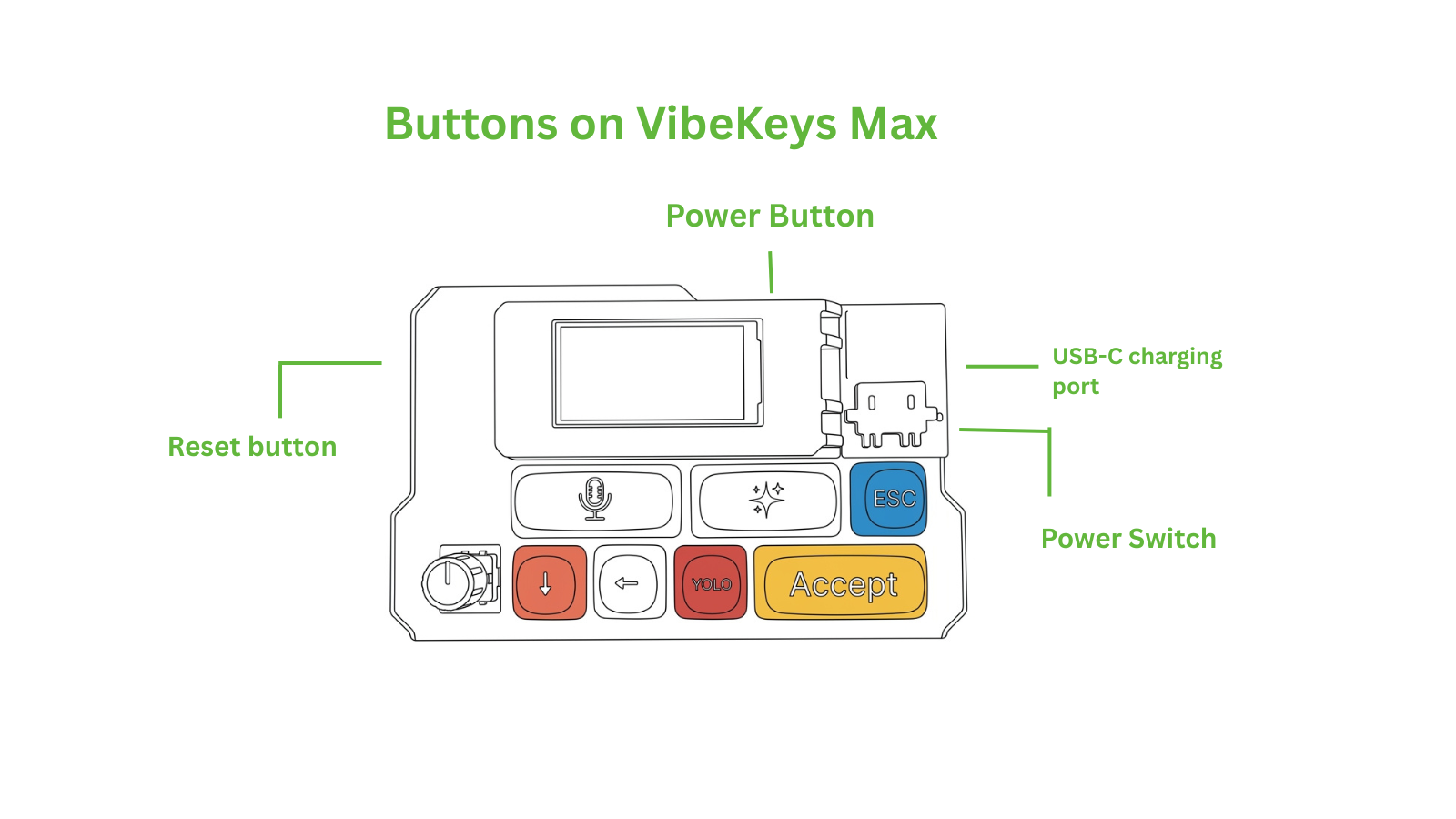
Side and rear controls
Power button
Use the power button to turn VibeKeys Max on or off.
- press once to turn on or wake the device
- press twice to turn off the device
- located on the top edge of the device
Reset button
Use the reset button to restart VibeKeys Max.
- press once to reset the device
- located on the left side of the device
USB-C port
Use the USB-C port to charge the battery or power the device over cable.
- located on the right side of the device
Power switches
Use the two power switches to select how VibeKeys Max is powered.
There are two power modes:
- Battery mode: both switches are set to the right
- USB-C power mode: both switches are set to the left
Battery mode is the default. Switch to USB-C power mode when you want to run the device directly from the cable instead of the battery.
Boot menu
Every time VibeKeys Max starts up, a boot menu appears with three entries:
- Keyboard — Bluetooth keyboard + voice input
- Remote — MQTT remote terminal (vibetty)
- Setting — WiFi networks, OTA Update, Clear config
Navigate with NEXT (forward) and ESC (back), and confirm with ACCEPT.
Default key mappings (Keyboard mode)
The table below shows the default key mappings in keyboard mode.
| Key | Symbol | Default Mapping | Description |
|---|---|---|---|
MIC | 🎙️ | Ctrl + Option | Hot key for voice dictation |
CUSTOM | 🌟 | /compact + Enter | Sends the /compact slash command to Claude Code |
ESC | ESC | Escape | Cancel or back out of the current action |
NEXT | ⬇️ | Down | Select the next item |
BACKSPACE | ⬅️ | Delete | Delete the previous character |
YOLO | YOLO | Shift + Tab | Allow all edits in the current session |
ACCEPT | Accept | Enter | Confirm, accept, or send |
Key details
🎙️ MIC
Default: Ctrl + Option
Hot key for voice dictation. Press to start dictation, press again to stop dictation. In the keyboard mode, you probably need to set it as the "Dictation" shortcut in your voice dictation app.
🌟 CUSTOM
Default: /compact + Enter
Sends the /compact slash command followed by Enter to Claude Code. This switches Claude Code to compact mode with a single keypress.
ESC
Default: Escape
Press ESC to cancel or back out:
- Cancel a pending input
- Dismiss a choice in Claude Code
- Leave the current step without confirming
- Go back in the boot menu and on-device menus
⬇️ NEXT
Default: Arrow Down
Selects the next item on a list or menu. Oce your made the selection, you can typically use the Accept key to act on it.
⬅️ BACKSPACE
Default: Delete
Deletes the previous character. Works just like Backspace on a standard keyboard.
YOLO
Default: Shift + Tab
In Claude Code, Shift + Tab allows all edits in the current session without further confirmation. The YOLO label is a reminder that you're giving Claude full permission to make changes.
Accept
Default: Enter
Press Accept to confirm or send:
- Send a prompt to Claude Code
- Accept a suggestion
- Confirm a selected action
- Confirm an entry in the boot menu and on-device menus
Rotary knob
The rotary knob is the main navigation control.
- rotate to scroll up and down the paged content in the terminal window
- in Keyboard mode, press the knob to type
/ - in Remote mode, press the knob to (re)open the session picker
In practice, the knob replaces mouse-wheel movement.
Keys in Remote mode
In remote control mode the keys drive the remote terminal instead of typing over Bluetooth:
| Key | Action |
|---|---|
| Rotary up / down | Scroll the terminal (local pan first, then request older/newer history) |
ACCEPT | Send Enter |
ESC | Send ESC |
NEXT | Send ↓ |
BACKSPACE | Send Backspace |
CUSTOM | Type /compact |
YOLO | Shift + Tab |
| Rotary push | Open the session picker |
MIC | Voice input — after recognition, an inline editor lets you review the transcript, move the cursor with the rotary, and press ACCEPT to submit |
See Remote Control Mode for the full flow.
Customizing keys (Keyboard Mode only)
In keyboard mode, all 7 programmable keys can be remapped to any keyboard shortcut, modifier combo, or text macro using the vibekeys CLI:
vibekeys keymap <KEY> <BINDING>
Customizing keys with the vibekeys CLI only affects keyboard mode. Remote control mode always uses the default key mappings shown in the table above, regardless of any customizations you've made.
See Customize Keys for the full guide with examples.