Updating VibeKeys Firmware
This guide shows you how to update the VibeKeys firmware on your device. There are two methods depending on your situation.
Your VibeKeys Max device comes with firmware pre-installed from the factory. You do NOT need to flash firmware for first-time setup. Simply proceed to the Quick Start Guide to configure your device.
What is Firmware?
Firmware is the software that runs on your VibeKeys device hardware, enabling it to connect to Bluetooth, handle WiFi, process button presses, and communicate with your computer.
How to Choose the Right Method
| Situation | Method | Time |
|---|---|---|
| Device is on 0.4.x and working fine | OTA Update (below) | 5-10 min |
| Device is on 0.3.x (any condition) | ESP LaunchPad (further down) | 10-15 min |
| Device won't connect or is broken | ESP LaunchPad (further down) | 10-15 min |
| Device needs factory reset | Setting → Clear config, or ESP LaunchPad | 1-15 min |
v0.4.0 changed the partition layout, so 0.3.x devices cannot reach 0.4.0 via OTA. You must do one full USB flash of the complete image with the ESP LaunchPad method below. This wipes saved settings (WiFi / MQTT broker / ASR), so plan to reconfigure the device on the setup page afterward. All future upgrades are back to normal OTA.
Method 1: OTA Update (devices already on 0.4.x)
Use this if your device is working, connected to WiFi, and already running 0.4.x. OTA (Over-The-Air) updates let you install new firmware wirelessly — no USB cable, no reboot into a special mode.
Step 1: Open OTA Update on the device
- Power on VibeKeys Max
- In the boot menu, select Setting (
NEXTto move,ACCEPTto confirm) - Select OTA Update
The device connects to one of your saved WiFi networks and starts its update server. The screen shows the next step.
Step 2: Install the new firmware
Choose either option shown on the device screen:
- Upload from a browser: open the update URL shown on the device in your browser, download the matching OTA image below, upload it, and click Start.
- Download-latest: select download-latest on the device and it pulls the newest release straight from GitHub — no computer needed.
OTA images (for devices already on 0.4.x — see Identify Your Version if unsure):
- V1 (wider screen)
- V2 (taller screen)
Download: vibekeys_ota.bin
Download: vibekeys_max2_ota.bin
The screen shows update progress. When complete, the device restarts automatically into the new firmware.
OTA updates work entirely over WiFi — no USB connection required. The device writes the new image to a spare partition and reboots into it, so a failed or interrupted update can be retried.
Method 2: ESP LaunchPad (USB flash — recovery, factory reset, and 0.3.x → 0.4.0)
Use this method for upgrading from 0.3.x, device recovery, factory resets, or if OTA updates don't work. It flashes the complete image (bootloader + partition table + firmware) over USB.
A full USB flash erases saved settings (WiFi / MQTT broker / ASR). Reconfigure the device on the setup page afterward.
Prerequisites
- A VibeKeys Max device
- A USB cable (USB-A to USB-C or USB-C to USB-C, depending on your computer)
- A computer with a web browser (Chrome or Edge recommended)
- Internet connection
Step 1: Connect Your Device
- Locate the USB-C port on your VibeKeys Max device (on the right side)
- Connect one end of the USB cable to the device
- Connect the other end to your computer
Make sure you use a USB cable that supports data transfer, not just charging. Some cables are power-only.
Step 2: Open ESP Launch Pad
-
Open your web browser (Chrome or Edge recommended)
-
Navigate to:
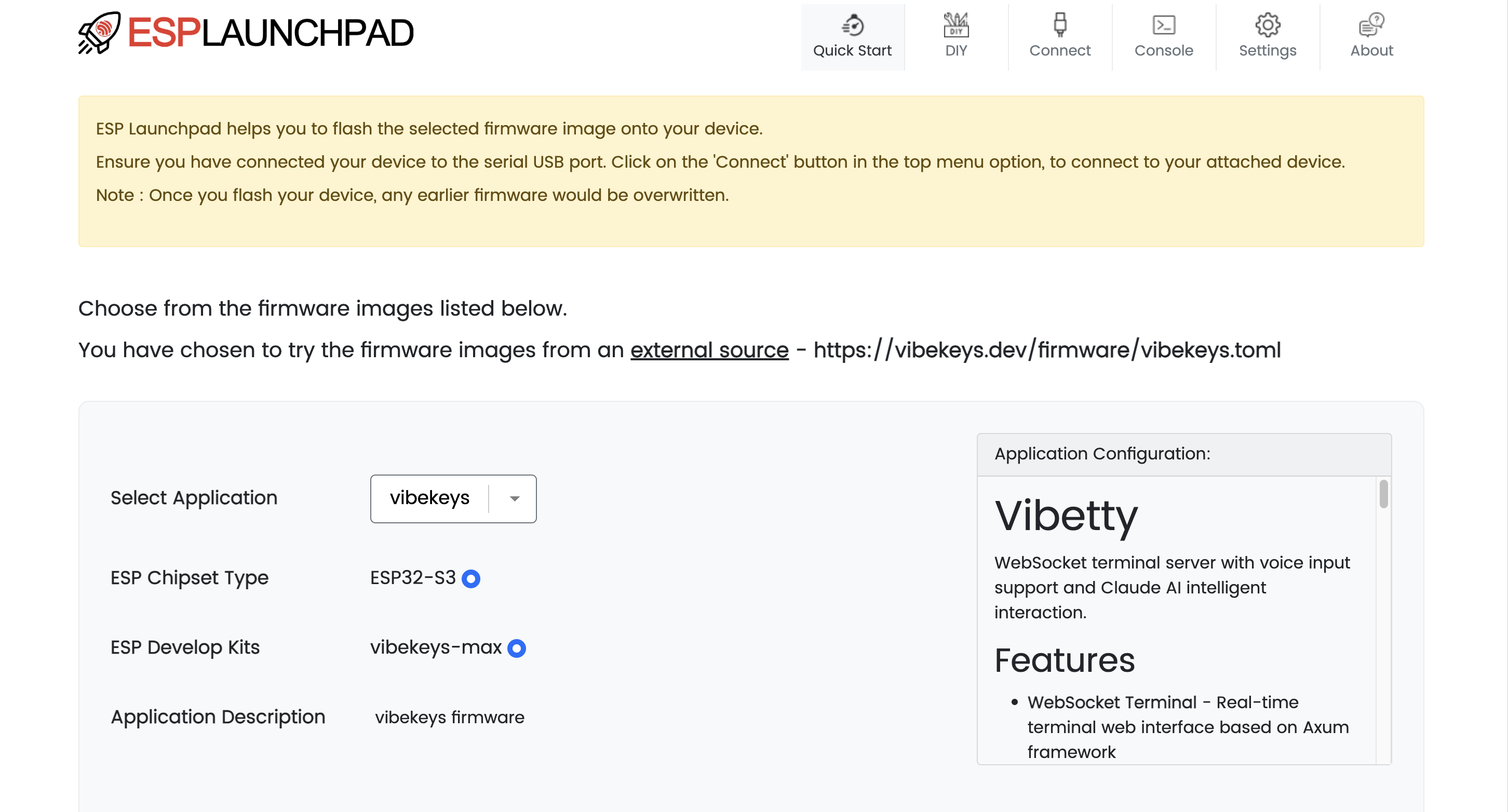
Step 3: Connect to Your Device
- Click "Connect" in the ESP Launch Pad interface header
- Allow USB device access when prompted by the browser
- Click "Allow" to grant permission
- This is required for the web tool to communicate with your device
Step 4: Update Firmware
- Select your version from the dropdown — choose V1 or V2 matching your device (see Identify Your Version if unsure)
- Click "Flash" to begin the firmware update
- Wait for completion - this typically takes 2-5 minutes
The process will show:
- Downloading the firmware from VibeKeys server
- Erasing old firmware
- Writing new firmware
- Verifying installation
Keep the USB cable connected throughout the entire update process. Interrupting the update may leave the device in an unusable state.
When the flash finishes, the device boots the new firmware. Open the setup page to configure WiFi, the MQTT broker, and voice input.
Related Documentation
- Quick Start Guide - First-time setup for new devices
- Buttons and Keys - Learn about the device controls
- Keyboard Mode - Use VibeKeys Max as a Bluetooth keyboard
- Claude Code Status Integration - Live Claude Code status on your device screen
- Troubleshooting - Fix common setup and mode-switching issues
Need Help?
If you encounter issues not covered in this guide:
- Check the GitHub Issues - Similar problems may already be solved
- Contact Support: vibekeys-customer-support@secondstate.io
- Join the Community: Check the GitHub repository for discussions and updates