Omarchy Remote: Reach Any Service on Your Omarchy Machine from Anywhere

The Omarchy Linux is a great choice for running your AI shed. It is also the next-gen Linux Desktop. With omarchy-remote, you can
- access your Omarchy Desktop from a web browser
- access any agent or AI inference service running on your Omarchy machine
omarchy-remote expose screen 6080                 # private: remote desktop in web browsers
omarchy-remote expose ai 11434 --auth bearer --host-header localhost   # public: Ollama's API, accessible via an API key, checked by Cloudflare
omarchy-remote expose app 3000 --auth login --allow friend@example.com   # public: email-code login
The omarchy-remote is open source. We welcome contributions and stars! Here is a video showing the Omarchy remote desktop opening from a laptop browser over Tailscale, a local LLM served through Cloudflare, and the Omarchy bar plugin.
Install
On the Omarchy machine, as a normal user, run the following command.
curl -fsSL https://raw.githubusercontent.com/second-state/omarchy-remote/main/install.sh | bash
This clones the tool, links omarchy-remote into ~/.local/bin, installs wayvnc, downloads noVNC and starts the two desktop services. Nothing is reachable from outside until you run expose. To upgrade later, run the same command again.
Then optionally, add the bar plugin to the Omarchy UI.
omarchy plugin add https://github.com/second-state/omarchy-remote-plugin --enable
One-time provider setup
We use commercial edge networking solutions to make your Omarchy machine securely accessible to the Internet. All of them provide generous free plans.
- Tailscale (private access): Install Tailscale on your Omarchy machine, as well as on all your client devices. Run Tailscale and log in.
- The first
exposemay print a link to turn on HTTPS for your tailnet; sudo tailscale set --operator=$USERletsexposerun without sudo.
- The first
- Cloudflare (public access): Create an API token on Cloudflare
- run
omarchy-remote cloudflare login. - for
loginandtoken, turn on Zero Trust (free for up to 50 users).
- run
- Pangolin (public access): Sign up at Pangolin
- add the machine as a site, delegate a subdomain to Pangolin,
- then run
omarchy-remote pangolin connectandomarchy-remote pangolin login.
Remote desktop in a browser
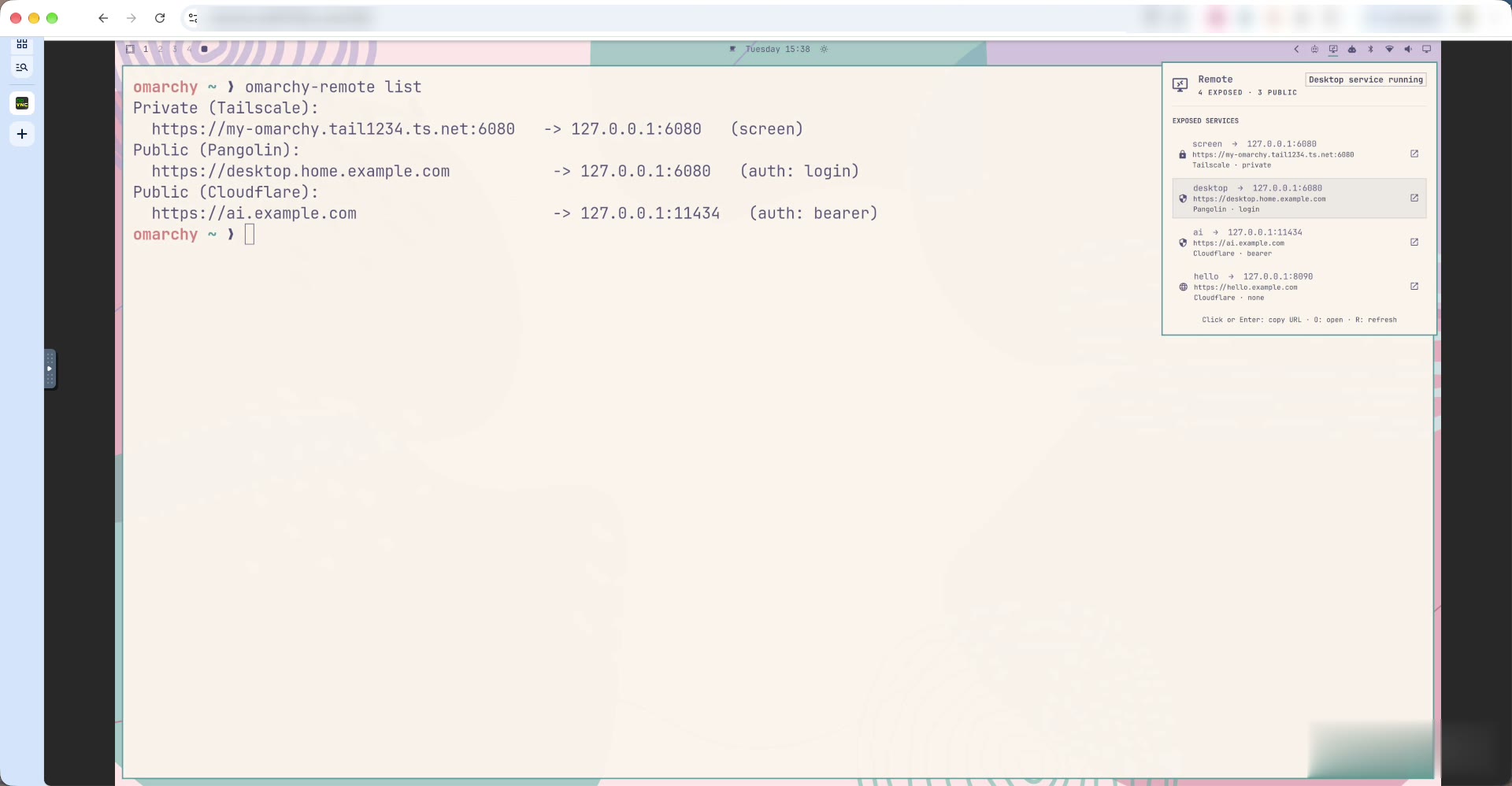
Use your Omarchy Desktop everywhere via a web browser!
omarchy-remote expose screen 6080
You will see a connection URL on the console. Just open that URL on any web browser that is logged into the same Tailscale account.
Public access to your desktop
What if you are on a public computer, or need to give access to a friend not logged into Tailscale? Set up Cloudflare (or Pangolin) as described above, then expose the desktop again under a second name, this time with a login:
omarchy-remote expose desktop 6080 --auth login --allow friend@example.com
You will get a public URL that works in any browser. Only the emails you list can get in, after entering a one-time code sent to them. Avoid --auth none for the desktop: anyone who finds the URL would get full control of your computer.
Applications and APIs
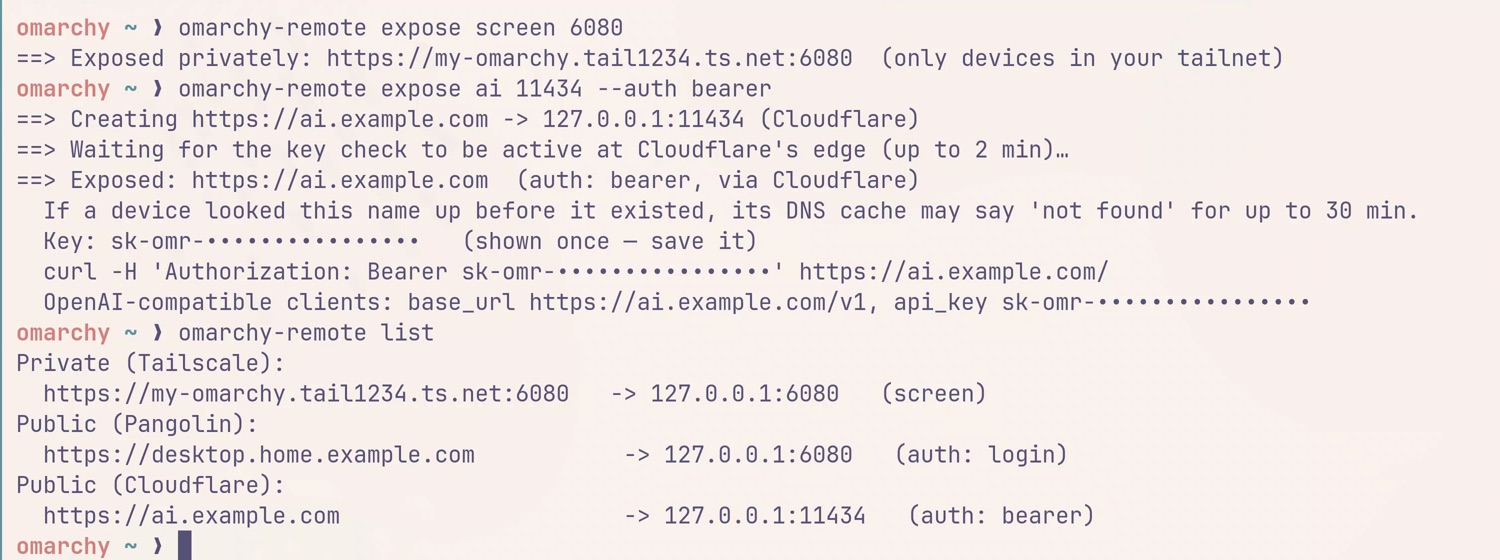
omarchy-remote expose <name> <port>                    # private URL via Tailscale
omarchy-remote expose <name> <port> --auth <mode> [--via cloudflare|pangolin]   # public URL
omarchy-remote list                                    # everything this machine exposes
omarchy-remote unexpose <name>
A few things to know about.
- Pick the provider per service.
--via cloudflare|pangolinchooses the public path. Leave it out and omarchy-remote picks for you: Cloudflare, or Pangolin if that is the only one you set up; with both set up it tells you it chose Cloudflare.omarchy-remote config set public <provider>changes the default.beareralways goes through Cloudflare andpasswordthrough Pangolin. - Some services only answer to
localhost. Ollama, Vite and similar dev servers refuse requests addressed to any other host name, so through a public URL they return 403 even with the right key. Add--host-header localhost(Cloudflare and Pangolin) and the request reaches them as if it came from the machine itself. Leave it off for ordinary web apps, which need the real host name for links and redirects. - Credentials are shown once. Generated passwords, tokens and keys are printed a single time. To rotate one,
unexposeandexposeagain. - Use the private URL for yourself. Tailscale is a direct connection. A public tunnel adds a relay hop, which you'll feel on the remote desktop.
- The desktop is the real desktop. Anyone who signs in to it has full control of your session, and every remote viewer shares the same screen.
Access control
Every service stays on 127.0.0.1. You only choose who can reach it:
| You want to… | Run | Who gets in |
|---|---|---|
| Reach it from your own laptop or phone | omarchy-remote expose <name> <port> | Only devices in your tailnet (your private Tailscale network) |
| Let specific people in from a browser | omarchy-remote expose <name> <port> --auth login --allow friend@example.com | The emails you list, after a one-time code (Cloudflare or Pangolin) |
| Let a program or an OpenAI-compatible client call it | omarchy-remote expose <name> <port> --auth bearer | Anyone with the API key, checked at Cloudflare's edge |
Scripts can also use --auth token or --auth password, and --auth none makes a page fully public. Under the hood explains each option.
The Omarchy bar plugin
Once you have a few services out, you'll want to see them without opening a terminal. The Omarchy Remote plugin, listed on the official Omarchy plugin marketplace, adds an icon to the Omarchy bar. Its panel lists every exposed service with its local port, public URL, provider and auth mode, plus whether the desktop service is running. Click a row (or press Enter) to copy the URL, press O to open it, or press R to refresh.
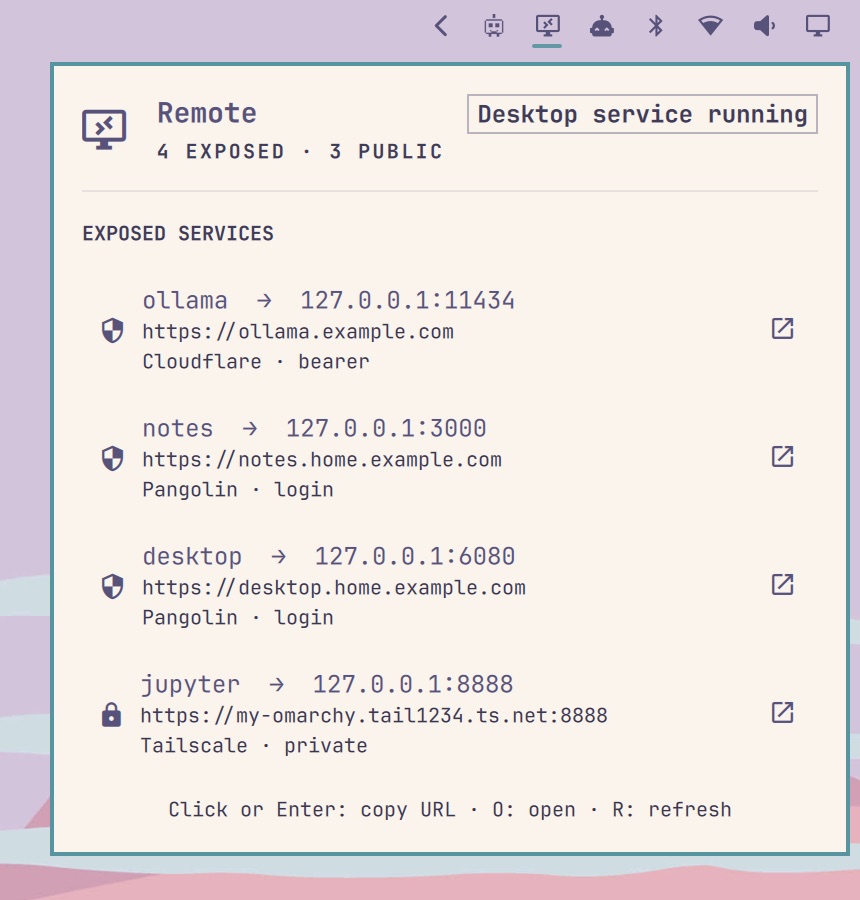
The plugin keeps no state of its own. It runs omarchy-remote list --json and renders the result, so the CLI and the bar always agree.
Under the hood

Every service stays bound to localhost. What changes is the path a request takes to reach it, and you choose that path per service.
Private by default: Tailscale
Without --auth, expose uses Tailscale Serve. Running omarchy-remote expose app 3000 asks Tailscale to serve https://<machine>.<tailnet>.ts.net:3000 and proxy it to 127.0.0.1:3000. Only devices signed in to your tailnet (your private Tailscale network) can open it. Traffic goes peer-to-peer and Tailscale issues the certificate. omarchy-remote keeps a small name-to-port map, so unexpose app knows exactly which serve entry to turn off.
This is the right mode for your own laptop and phone: it is free for personal use, needs no domain, and is the fastest path to the remote desktop.
Public: Cloudflare or Pangolin, your choice
Adding --auth makes the URL public. Both public providers reach the machine through an outbound tunnel, so nothing on your network has to accept inbound connections. You choose the provider per service with --via cloudflare|pangolin. The default is Cloudflare, since many people already have a domain there. If you only set up Pangolin, it uses Pangolin instead.
--auth | For | Cloudflare | Pangolin |
|---|---|---|---|
login | people, in a browser | ✓ Cloudflare Access, email one-time code | ✓ Pangolin login, email one-time code |
token | scripts | ✓ Access service token | ✓ Pangolin access token |
bearer | OpenAI-compatible clients | ✓ key checked by a WAF rule | — |
password | scripts and browsers | — | ✓ HTTP Basic |
none | everyone (needs --yes-public) | ✓ | ✓ |
Every password, token or key is generated for you and shown once.
Cloudflare: Tunnel, Access and the edge
On first use, omarchy-remote creates one Cloudflare Tunnel named omarchy-remote-<host> and runs cloudflared as the systemd user unit omarchy-remote-tunnel. Each expose adds an ingress rule (the tunnel's routing entry) for 127.0.0.1:<port> and a proxied DNS record <name>.<your zone>. The auth check depends on the mode:
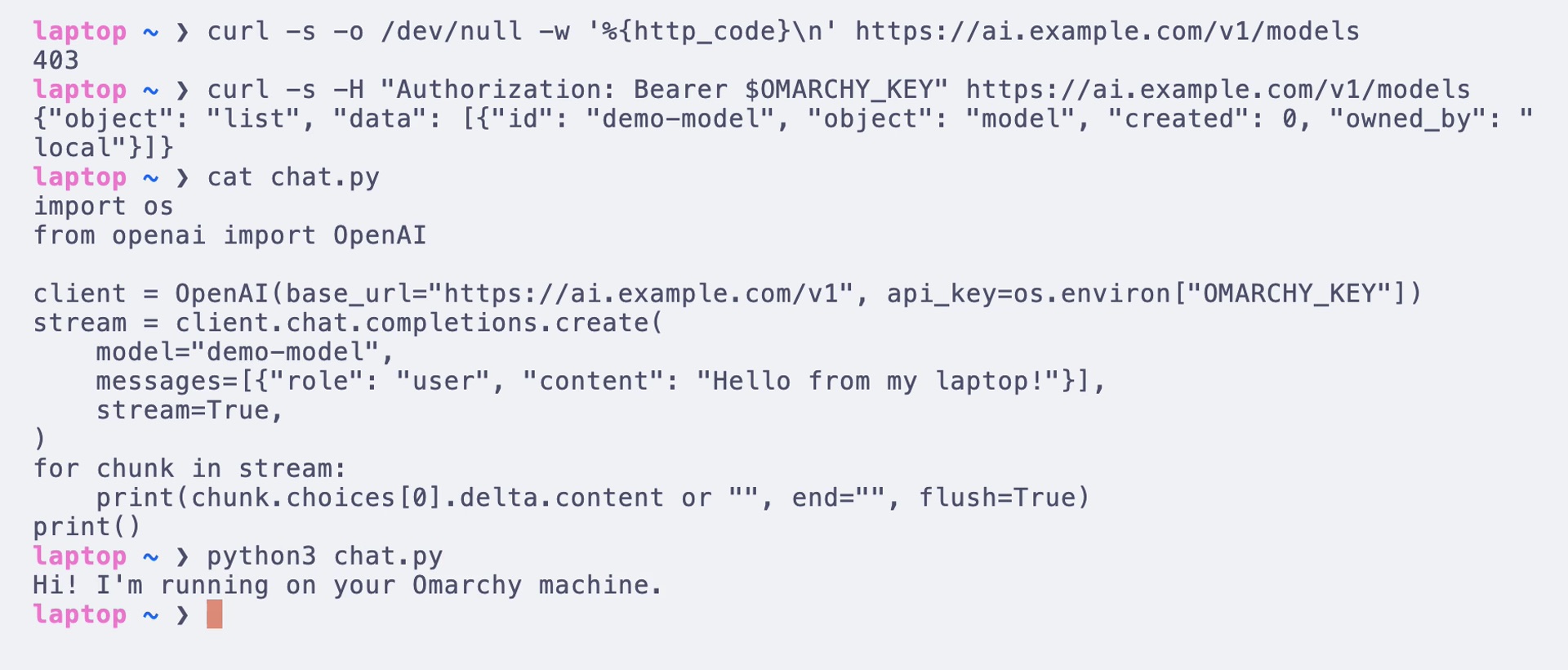
loginandtokenuse Cloudflare Access. omarchy-remote creates one Access application per service. It is guarded by a policy that allows the emails you list with--allow(they sign in with a one-time code sent by email) or a fresh service token (scripts sendCF-Access-Client-IdandCF-Access-Client-Secret). The application exists before the DNS record does, so the hostname is never reachable without the login.beareris for model APIs. OpenAI-compatible clients sendAuthorization: Bearer <key>and expect streaming to just work. omarchy-remote adds a WAF custom rule (a Cloudflare firewall rule) that blocks any request to that hostname without the right key. The check happens at Cloudflare's edge, so requests without the key never reach your machine.
Either way, expose waits until a request without credentials is actually refused before it reports success, because rules take 10 to 30 seconds to propagate. unexpose removes the record, the ingress rule and the Access application, policy, token or WAF rule.
A bearer key works like any hosted API key:
Pangolin: an identity-aware tunnel
Pangolin is the other public option, and the one to use for password. The machine joins your Pangolin organization as a site. For each expose, omarchy-remote calls the Pangolin Integration API: it creates a resource at <name>.<your delegated domain>, points it at 127.0.0.1:<port> and switches on the auth mode. With login, members of your Pangolin organization sign in with their account, and the emails on your --allow list get a one-time code. You delegate one subdomain to Pangolin once (point its NS records at Pangolin), for example home.example.com. After that, every new service gets its own hostname and certificate in about 30 seconds.
The desktop is just another service
The installer also sets up a browser remote desktop, so there is something useful to expose from day one. wayvnc captures the Hyprland session on 127.0.0.1:5900, and noVNC serves it as a web page on 127.0.0.1:6080. Both run as systemd user units that start with your graphical session. If no monitor is attached, the desktop service tries to create a virtual one. To omarchy-remote, port 6080 is a port like any other.
What's next
omarchy-remote is the first piece of a larger idea: a lightweight personal cloud on top of Omarchy, with no container orchestration and no heavyweight user system. It's your own computer, reachable from anywhere. Next on the list:
- a dedicated 1080p virtual display for remote sessions
- a low-latency mode built on Sunshine and Moonlight
- proxying other devices on your LAN through the same commands
- personal devices to interact with agents on Omarchy (e.g., VibeBuddy)
The CLI and the plugin are open source under the MIT license. Try them, open an issue, or send a pull request: