Choose How the Keypad Connects
In remote control mode, the keypad and vibetty never talk to each other directly. Both connect to the same MQTT broker, a message relay (see How it fits together). Where that broker runs decides where you can use the keypad.
There are three options:
| Same WiFi | Tailscale | Cloud broker | |
|---|---|---|---|
| Where the keypad works | On the same WiFi as your computer | Anywhere with WiFi | Anywhere with WiFi |
| Where the broker runs | On your computer, inside vibetty | On your computer, reached through your tailnet | On a hosted service such as EMQX Cloud, or your own server |
| What you need | Nothing extra | A Tailscale account, Tailscale running on your computer, and keypad firmware v0.4.3 or newer | An account with an MQTT service (EMQX Cloud has a free tier) |
| Who can reach the broker | Anyone on the same network | Only devices in your tailnet | Anyone with the username and password |
Answer in vibeup wizard | No — LAN only | Yes — outside LAN → Yes | Yes — outside LAN → No — help me choose → Use EMQX Cloud or I have my own broker |
Which one? Start with Same WiFi if you only use the keypad at home or at your desk. To use it away from your computer, choose Tailscale if you already use it or want your sessions to stay on your own network, or a cloud broker if you can't run Tailscale on the computer.
Same WiFi (built-in broker)
vibetty starts its own broker on port 1883 of your computer, and the keypad connects to your computer's LAN address.
With the wizard: answer No — LAN only. vibetty gets mqtt://127.0.0.1:1883 and the keypad gets mqtt://YOUR_PC_LAN_IP:1883. If your computer has more than one network address, the wizard asks which one to use: pick the one on the WiFi the keypad uses.
By hand (or fill in the keypad side in the vibeup panel): in ~/.vibetty/config.toml (or with vibetty setup), point the broker at localhost, and vibetty starts its own broker on that port:
[mqtt]
broker = "mqtt://127.0.0.1:1883"
Then give the keypad your computer's LAN address:
vibeup config server-url vibekeys mqtt://YOUR_PC_LAN_IP:1883 --reset
The built-in broker has no password. Anyone on the same network can connect to it, see your sessions, and send keystrokes to them. Use it at home or on a private office network, not on café or other shared WiFi. Don't expose it to the internet.
If your computer's LAN address changes, the keypad can no longer reach it. Run the wizard again, or set the new address with vibeup config server-url.
Tailscale
Tailscale puts your devices on a private network called a tailnet, where each one gets a fixed 100.x.x.x address that works from anywhere. The keypad joins your tailnet and reaches the built-in broker on your computer through an encrypted tunnel. No ports are opened on your computer, and nothing else can reach the broker.
You need:
- a Tailscale account;
- Tailscale running on your computer (
tailscale up), signed in to the same account; - keypad firmware v0.4.3 or newer (see Updating Firmware).
With the wizard:
-
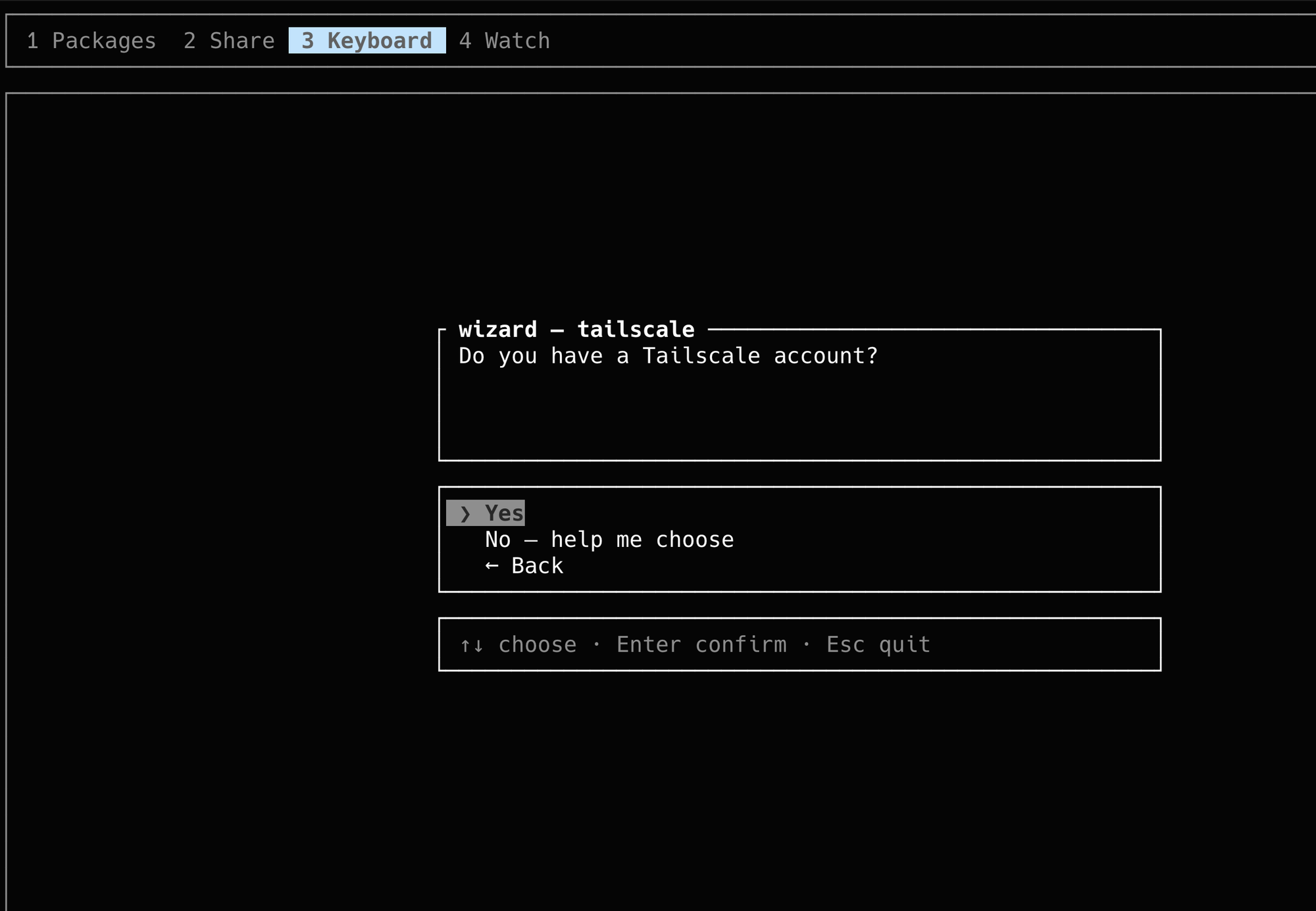
Answer Yes — outside LAN, then Yes to Do you have a Tailscale account?
-
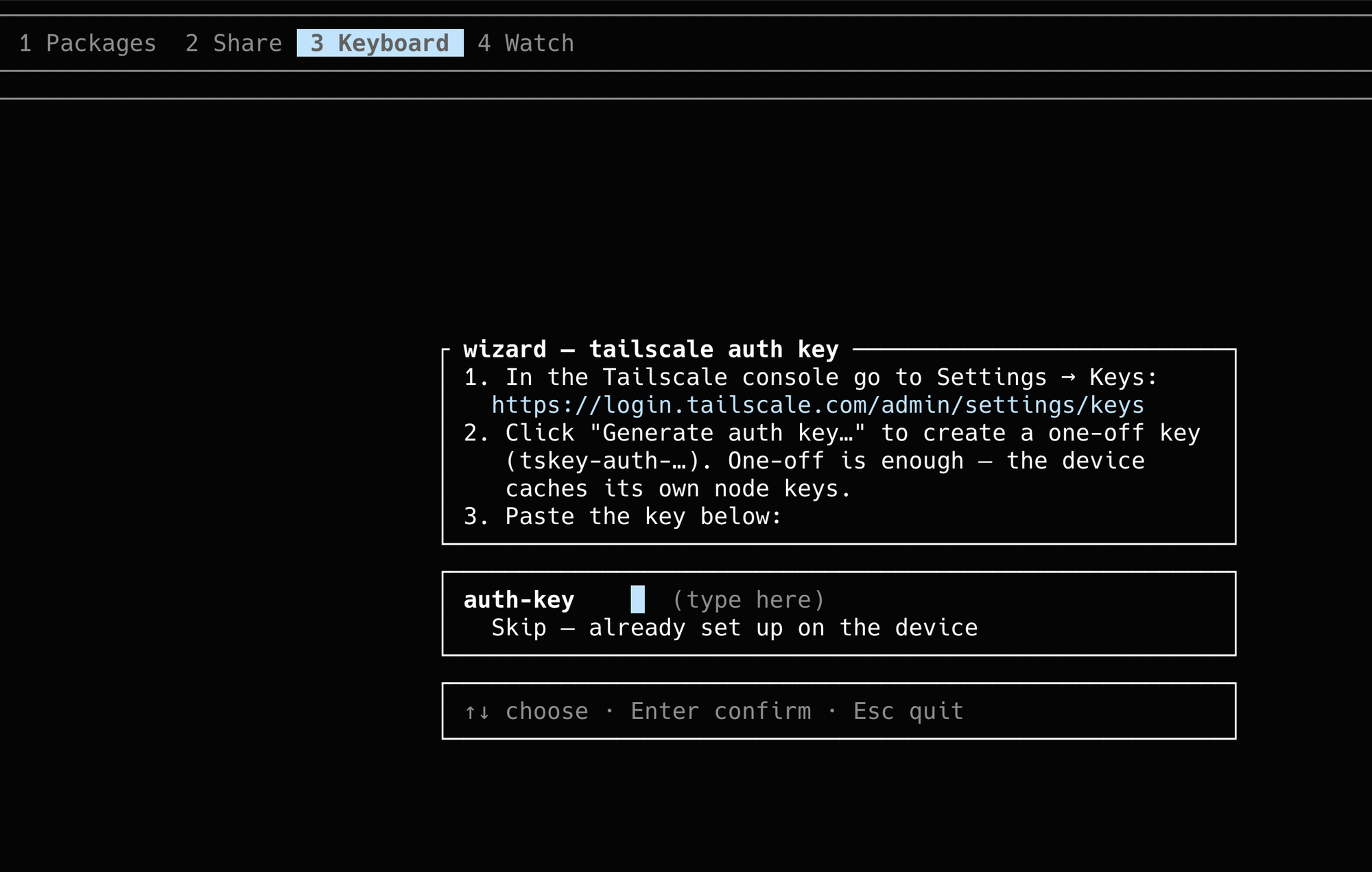
In the Tailscale admin console, go to Settings → Keys and click Generate auth key…. A one-off key (
tskey-auth-…) is enough: the keypad keeps its own identity after joining. -
Paste the key. The keypad joins your tailnet.
-
The wizard finds your computer's Tailscale address. The keypad gets
mqtt://YOUR_TAILSCALE_IP:1883and vibetty getsmqtt://127.0.0.1:1883.
If the wizard can't find a Tailscale address, run tailscale up on your computer and press Enter to retry. If the keypad has joined your tailnet before, choose Skip — already set up on the device instead of pasting a key.
By hand (or fill in the keypad side in the vibeup panel):
tailscale ip -4                                          # your computer's Tailscale address
vibeup config server-url vibekeys mqtt://100.x.y.z:1883  # the broker, on that address
vibeup config tailscale vibekeys tskey-auth-...          # join the keypad to your tailnet (last)
Bind the key last: the keypad switches to its Tailscale screen right away and drops the Bluetooth connection, so commands after it can't reach the keypad.
vibetty uses the built-in broker, as in Same WiFi. Keys typed on the command line stay in your shell history, so use a one-off key.
On the keypad: after it gets a key, the keypad shows a Tailscale screen with its connection progress and, once connected, the devices in your tailnet. Press ESC to leave it. When you choose Remote from the boot menu, the keypad connects to Tailscale first. The first connection can take up to about 90 seconds.
To use a different key later, bind the new one the same way. The keypad replaces its old tailnet registration.
Cloud broker
The keypad and vibetty both connect to a broker on the internet, protected by a username and password. It works anywhere, and your computer doesn't need Tailscale. Your session traffic passes through the broker's servers.
EMQX Cloud: sign up at emqx.com/en/cloud. It has a free tier, which the wizard describes as up to 1 GB a month. In the console:
- Create a Serverless deployment (the free plan).
- Under Access Control → Authentication, add a username and password. EMQX Cloud doesn't allow connections without one.
- On the deployment's Overview page, copy its address. Serverless only accepts TLS connections, on port 8883.
Your broker URL is:
mqtts://USERNAME:PASSWORD@ADDRESS:8883
Your own broker: any standard MQTT broker works. Use its URL in the same form.
The username and password go in the URL; there are no separate fields. Use mqtts:// (TLS) whenever the broker is on the internet, so the password and your sessions are encrypted.
With the wizard: answer Yes — outside LAN → No — help me choose → Use EMQX Cloud (or I have my own broker), and paste the URL. The same URL goes to the keypad and to vibetty.
By hand (or fill in the keypad side in the vibeup panel): put the URL in ~/.vibetty/config.toml (or use vibetty setup), and give the keypad the exact same URL:
[mqtt]
broker = "mqtts://USERNAME:PASSWORD@ADDRESS:8883"
vibeup config server-url vibekeys mqtts://USERNAME:PASSWORD@ADDRESS:8883 --reset
Fill in the keypad side with the vibeup panel
Instead of vibeup config commands, you can type the keypad's settings into the vibeup panel:
-
Turn on the keypad and select Keyboard from the boot menu.
-
Run
vibeupand press3to open the Keyboard tab.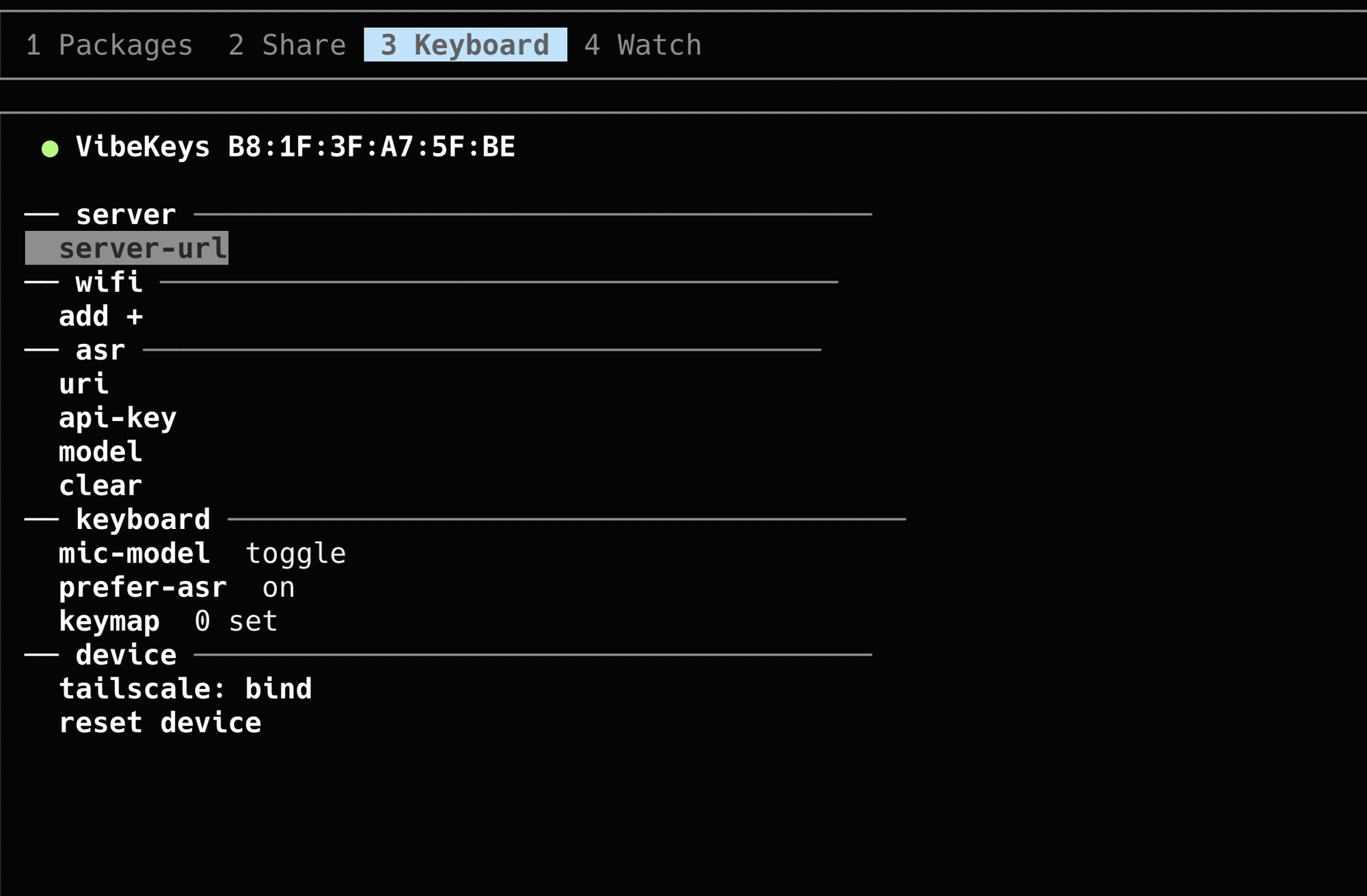
-
Select a row, press
Enter, type the value, and pressEnterto save:- server-url: the broker URL for the keypad.
- tailscale: bind: your Tailscale auth key. The keypad switches to its Tailscale screen right away and drops the connection to vibeup, so do this last and skip step 4. When it's connected, press
ESCon the keypad and choose Remote. - add + under wifi: a WiFi network.
-
Select reset device and press
Enterso the keypad restarts with the new settings.
If the keypad has no WiFi saved yet, the panel starts the setup wizard as soon as it connects. Press Esc to leave the wizard and get to the settings list. If the keypad has WiFi but no broker yet, selecting server-url also opens the wizard instead.
The panel only sets the keypad. Set vibetty's side with vibetty setup or in ~/.vibetty/config.toml, as shown in each option above.
Switch to a different option
Run vibeup wizard again and give a different answer. The wizard replaces the broker in ~/.vibetty/config.toml and on the keypad. Or set both sides by hand as shown above. Either way, the keypad and vibetty must end up on the same broker.