Configure the Keypad from the Terminal
vibeup config changes one setting on VibeKeys Max over Bluetooth, without running the whole wizard.
The setup page writes the same settings from a browser (Chrome or Edge). Use it if you'd rather not use a terminal, or if vibeup can't run on your computer yet, for example on an Intel Mac. Everywhere else in these docs, vibeup is the main way.
Before you start
- Turn on VibeKeys Max and select Keyboard from the boot menu.
- If the keypad is already connected to a computer as a Bluetooth keyboard, press
ACCEPTso it advertises again.
Every command takes the device type vibekeys and connects to the first VibeKeys Max it finds.
Commands that take a WiFi password, API key, or Tailscale key are saved in your shell history like any other command. For those, the wizard is safer, because it asks in a form. If you do use the command, clear it from your history afterwards, and use a one-off Tailscale key so it can't be reused.
Or use the panel
Most settings on this page are also rows in the vibeup panel. Run vibeup and press 3 to open the Keyboard tab. It shows the keypad's current values; select a row, press Enter, type the new value, and press Enter to save. Select reset device afterwards so changes like the broker take effect.
If the keypad has no WiFi saved yet, the panel starts the setup wizard as soon as it connects. Press Esc to leave the wizard and get to the settings list.
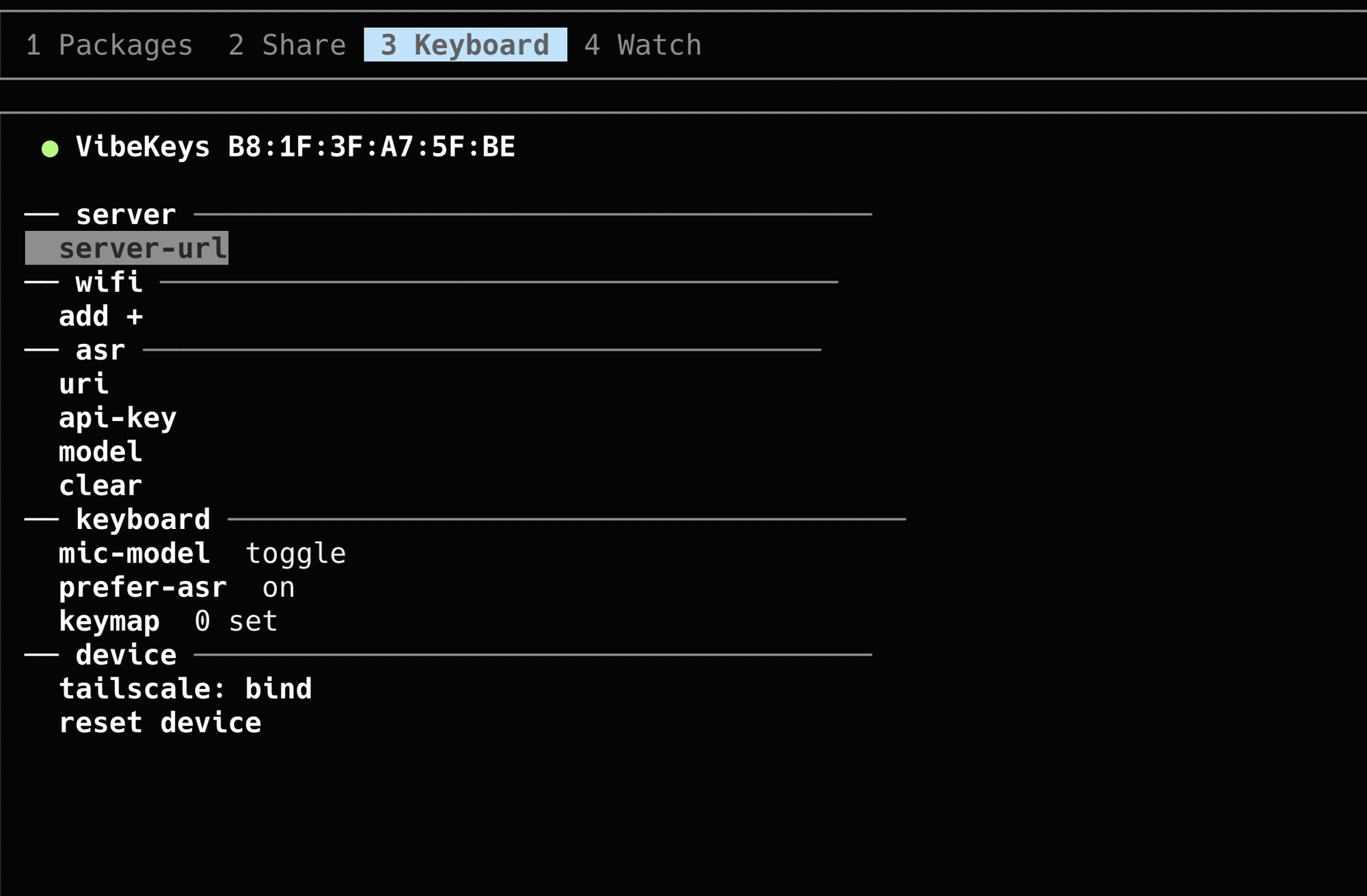
See the current settings
vibeup config show vibekeys
WiFi
The list order is the connection priority. The keypad holds up to 8 networks, all 2.4GHz.
vibeup config wifi vibekeys show
vibeup config wifi vibekeys add MySSID secret123
vibeup config wifi vibekeys remove MySSID
MQTT broker
The broker URL for remote control mode. Use the same broker vibetty uses:
vibeup config server-url vibekeys mqtt://192.168.1.20:1883
vibeup config server-url vibekeys mqtts://user:pass@broker.emqx.io:8883 --reset
--reset reboots the keypad so the new setting takes effect right away.
Tailscale
Join the keypad to your tailnet with a one-off auth key from login.tailscale.com/admin/settings/keys:
vibeup config tailscale vibekeys tskey-auth-...
Voice input
# Whisper-compatible speech recognition service
vibeup config asr vibekeys \
  --uri https://api.groq.com/openai/v1/audio/transcriptions \
  --api-key YOUR_KEY --model whisper-large-v3
vibeup config asr vibekeys --clean     # remove the ASR service

# MIC key: ptt = hold to talk, toggle = tap to start / stop
vibeup config mic-model vibekeys ptt

# Keyboard mode: on = keypad transcribes, off = MIC sends a hotkey to your dictation app
vibeup config prefer-asr vibekeys on
See Voice Input in Keyboard Mode and Voice Input in Remote Mode.
Key mappings
vibeup config keymap vibekeys CUSTOM '"/compact\n"'   # text macro: /compact + Enter
vibeup config keymap vibekeys MIC Ctrl+X              # key combo
vibeup config keymap vibekeys YOLO delete             # named key
Keys you can remap: MIC, CUSTOM, ESC, NEXT, BACKSPACE, YOLO, ACCEPT, and ROTATE. The binding syntax is the same as vibekeys keymap. See Customize Key Mappings.
Reboot the keypad
vibeup config reset vibekeys
Preview a change
Add --dry-run to see what would be written without touching the keypad:
vibeup --dry-run config server-url vibekeys mqtt://192.168.1.20:1883