Set up your VibeBuddy
Install the app, plug in the box, and VibeBuddy starts watching Claude Code, Codex and your GitHub Actions runs.
1Install and open the VibeBuddy app
Download VibeBuddy-<version>-arm64.dmg from the latest release.
Open it and drag the app to Applications.
Open the app. First-run setup starts and walks you through steps 2 and 3.
2Connect the box to your computer
Plug VibeBuddy into your Mac with the included USB-C cable. The one cable powers the box and carries its events; there's no Wi-Fi or pairing. If macOS asks whether to let the accessory connect, click Allow.
Setup finds the box and makes it blink, so you know it's the right one.
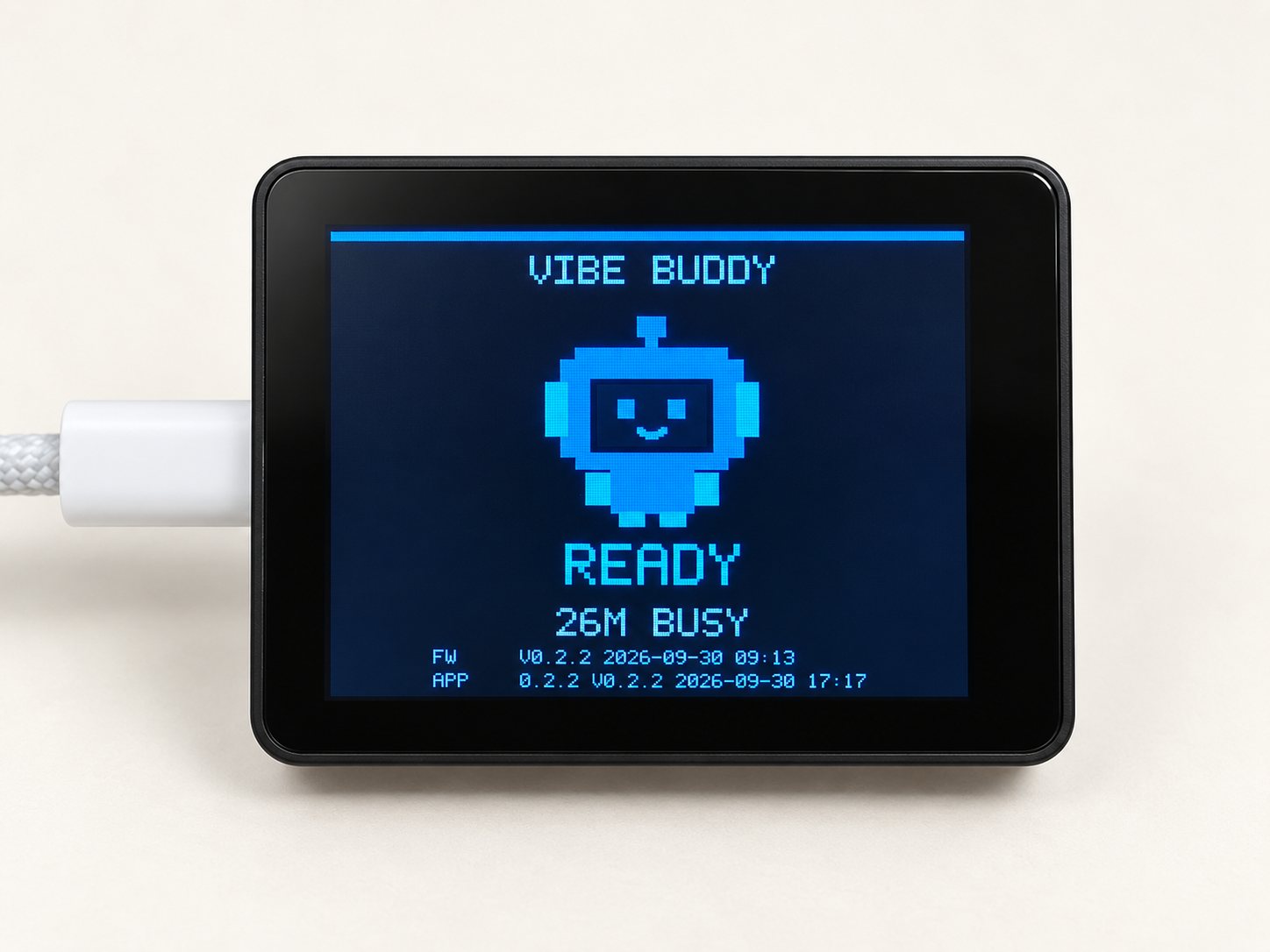
Not found? Make sure you're using the included cable (some USB-C cables only charge). More in Troubleshooting.
3Connect your agents
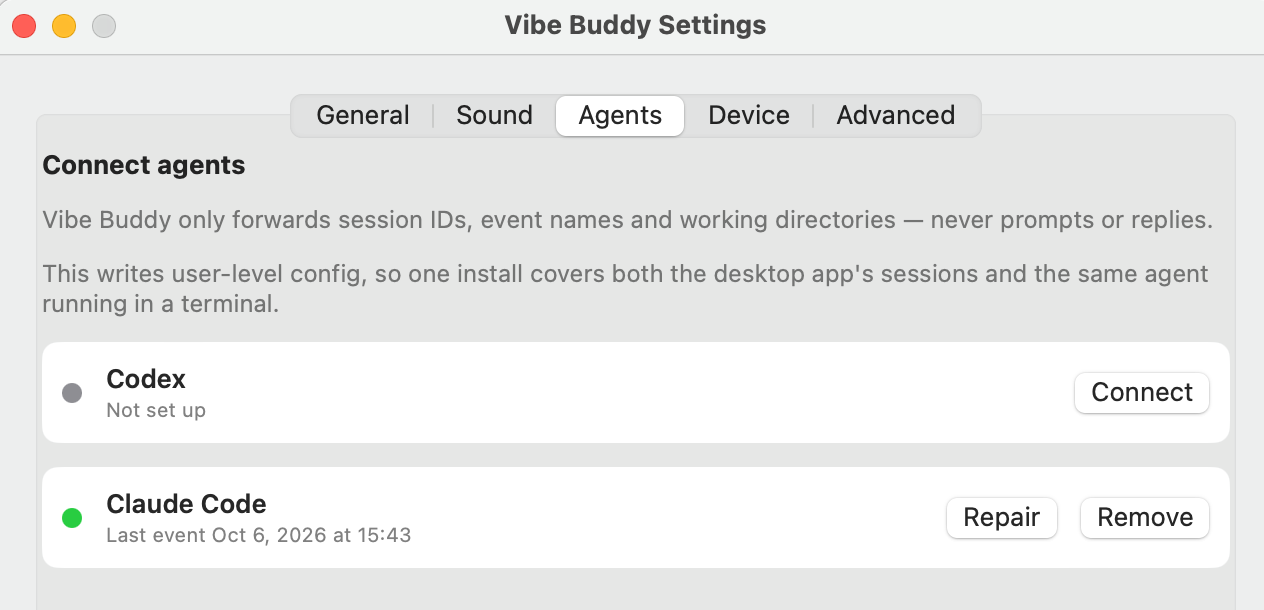
Setup lists Claude Code and Codex. For each one you use:
Click Connect.
Check the change VibeBuddy is about to make to that agent's hook config, then click Write to confirm. You don't edit any config yourself.
The row shows Waiting for the first event… until you use that agent. As soon as it reports, the row turns green and shows the time of its last event (step 4 does this).
- ✓GitHub Actions: nothing to connect. VibeBuddy checks your runs every 30 seconds through the
ghCLI you're already signed in to, for the repositories your agents worked in during the last hour. - ✓Desktop app and terminal: the connection is user-level, so it covers both the agent's desktop app and the same agent in a terminal.
- ✓Later: connect, repair or remove an agent any time in Settings → Agents.
Setup then asks you to pick an announcement voice and whether to launch at login.
Privacy: the hook only forwards session and turn IDs, event names and the working directory. It never forwards prompts, assistant replies, transcripts or tool results.
4Open Claude Code or Codex and try it
Start Claude Code or Codex in any project and give it a small task, such as summarizing the README or fixing a typo. Then watch the box:
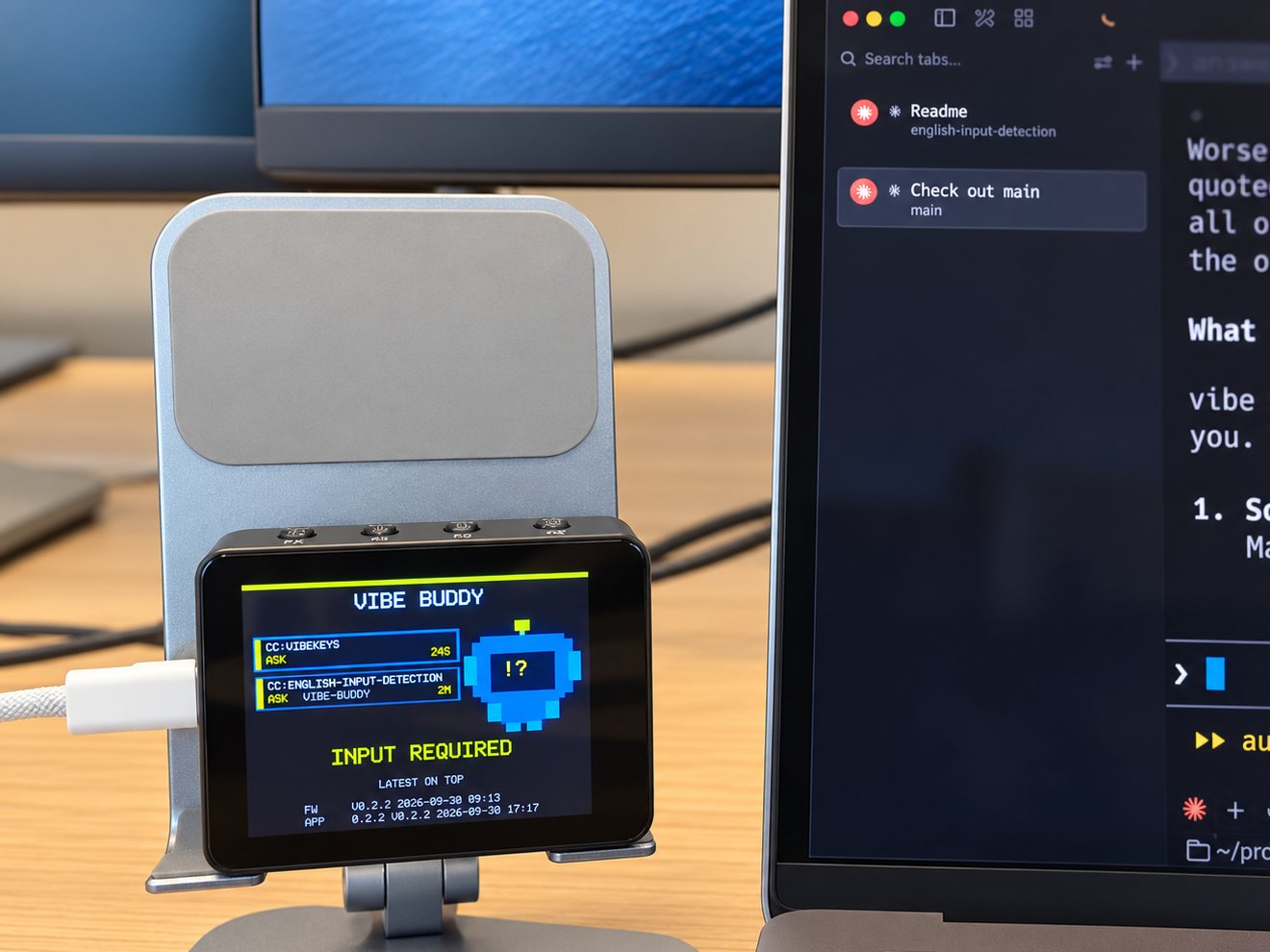
Working. A card appears with the agent (CC or CX), the session name and the project. The buddy stays quiet while the agent works.
Input required. When the agent needs you (to approve a command, or answer a question), the box says one short line. Press K2 to bring up the most recent session, the card on top.
Done. When the task finishes, you hear it and see how long it took.
That's it: get back to work and let the buddy call you. The rest of this page covers the app, the buttons, every screen state and troubleshooting.
The VibeBuddy app
The app runs the connection to the box and holds your settings. It doesn't show task alerts itself: those come from the box.
Menu bar
The icon is the buddy's pixel face. It's grayed out with its eyes closed when the box isn't connected. Click it for:
- ✓Box status: online with its firmware version, box not found, or daemon not responding (click to restart it)
- ✓Current mode: On duty, Pomodoro or Leisure
- ✓Today's stats
- ✓Settings… (or open the app again from Finder, Launchpad or Spotlight)
- ✓Quit. Quitting takes the box offline, so leave the app running. It can start at login.
The app shows a Dock icon only while one of its windows is open. It sends a macOS notification only when the link breaks: the box has been disconnected for more than 30 seconds, or the background service failed to restart. Agent events never become Mac notifications.
Settings
| Tab | What's there |
|---|---|
| General | Launch at login, notifications when the link breaks, and the interface language (System, English or 简体中文). |
| Sound | The box's volume and the announcement voice. See Voice and volume below. |
| Agents | Claude Code and Codex, each with its status, its most recent event, and Connect, Repair and Remove. One connection covers both the desktop app and the same agent in a terminal. |
| Device | Firmware versions and updates, and a live view of the box's screen. See Firmware and the box screen below. |
| Advanced | Open logs, restart the background service, and export diagnostics to send to support. |
Voice and volume
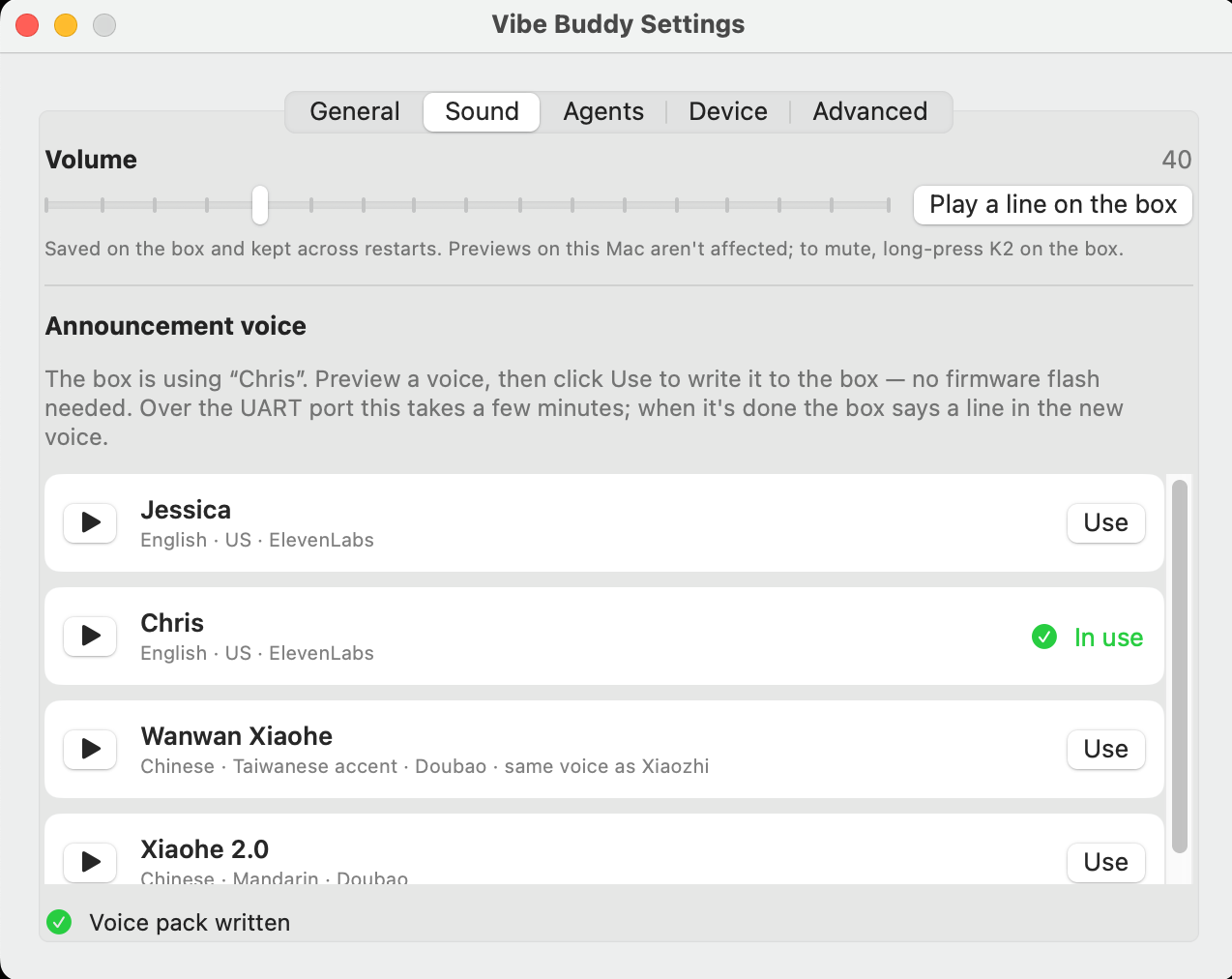
In Settings → Sound, drag the slider to set the box's volume and click Play a line on the box to hear it. The volume is saved on the box and kept across restarts. To mute, hold K2 on the box.
Below it are the announcement voices: Jessica and Chris in English, Wanwan Xiaohe and Xiaohe 2.0 in Chinese. Press play to preview one, then click Use to write it to the box. Writing can take a few minutes; keep the cable plugged in. When it's done, the box says a line in the new voice.
Firmware and the box screen
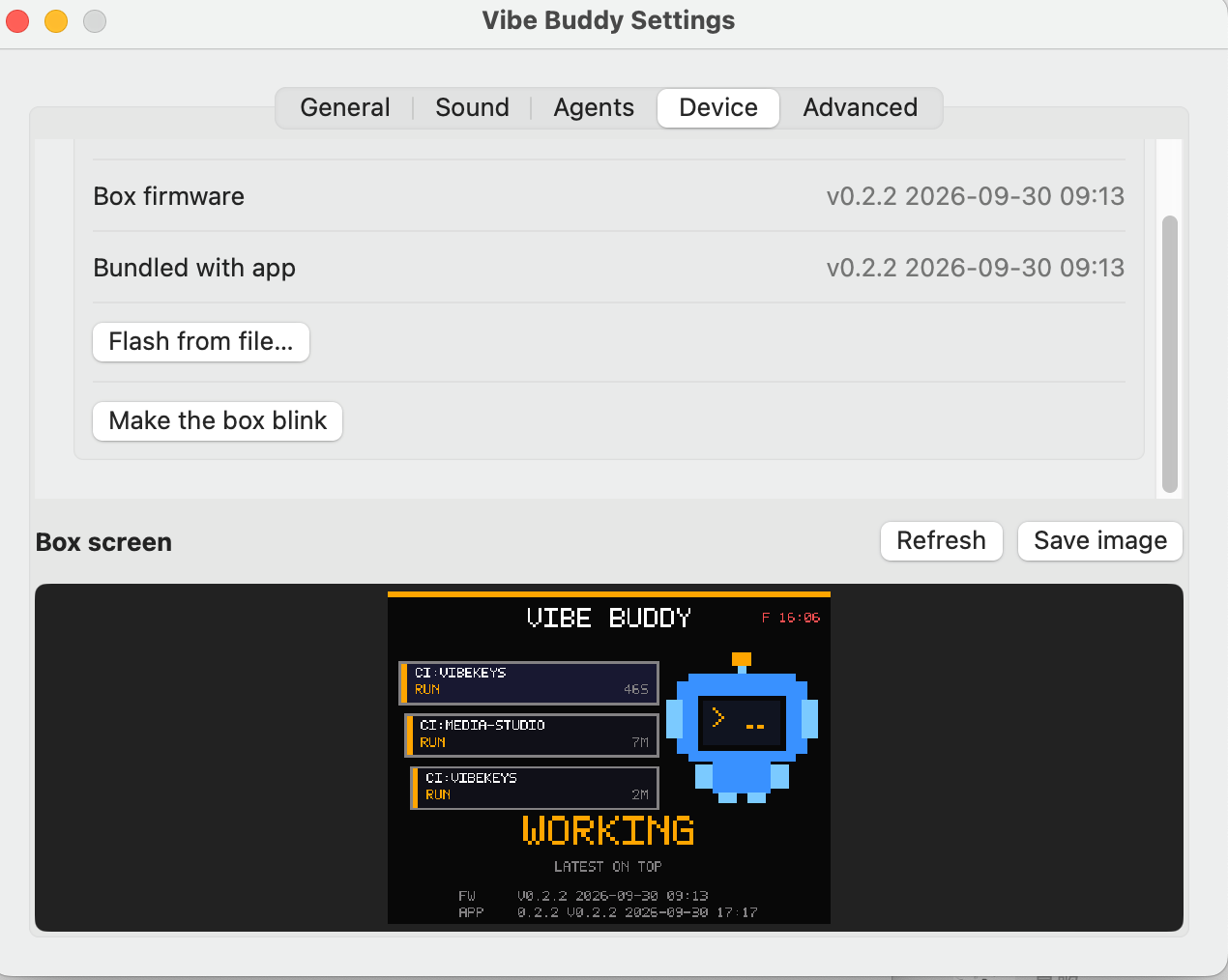
Settings → Device shows the box's firmware next to the firmware bundled with your app. When they differ, an Update to bundled version button appears; click it and keep the cable plugged in until the box restarts. Firmware updates keep your voice and today's stats.
- ✓Flash from file… installs a firmware package you downloaded yourself (
VibeBuddy-firmware-<version>.zipfrom the releases page). It shows the package and the box's current version side by side before flashing. - ✓Make the box blink confirms which box the app is talking to.
- ✓Box screen shows what's on the box right now. Click Refresh to update it and Save image to keep a copy, handy when you contact support.
Updating the app
The app doesn't update itself. New versions are on the releases page: install the new app over the old one, then check Settings → Device in case it offers a firmware update.
Buttons and modes
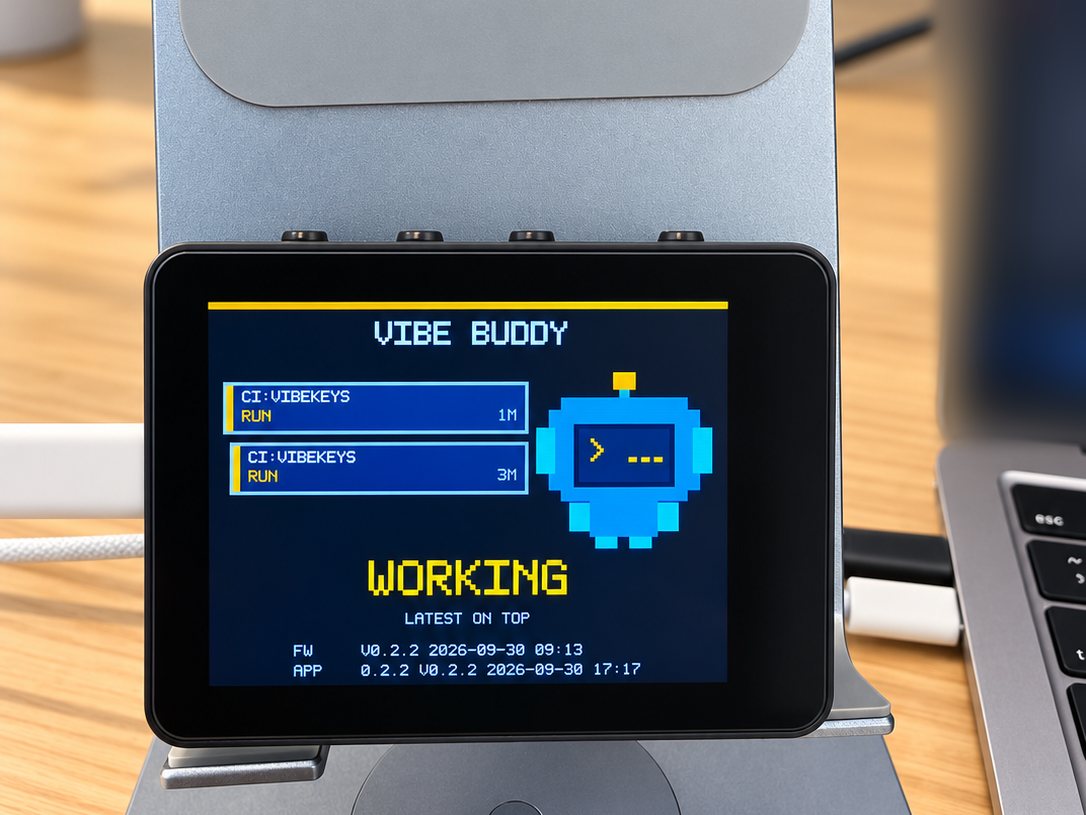
The box has three buttons, K0, K1 and K2, plus RST, along its top edge. Each one does the same thing in every mode.
| Button | Press | Hold 1 second |
|---|---|---|
| K0 | Pomodoro: start, pause, resume | Give up the current phase (or skip a break that's waiting to start) |
| K1 | Switch between On duty and Pomodoro | Send the buddy to Leisure right away |
| K2 | Bring up the window of the most recent session (the card on top) | Mute or unmute all voice, including the Pomodoro chime (MUTE shows on screen) |
Modes
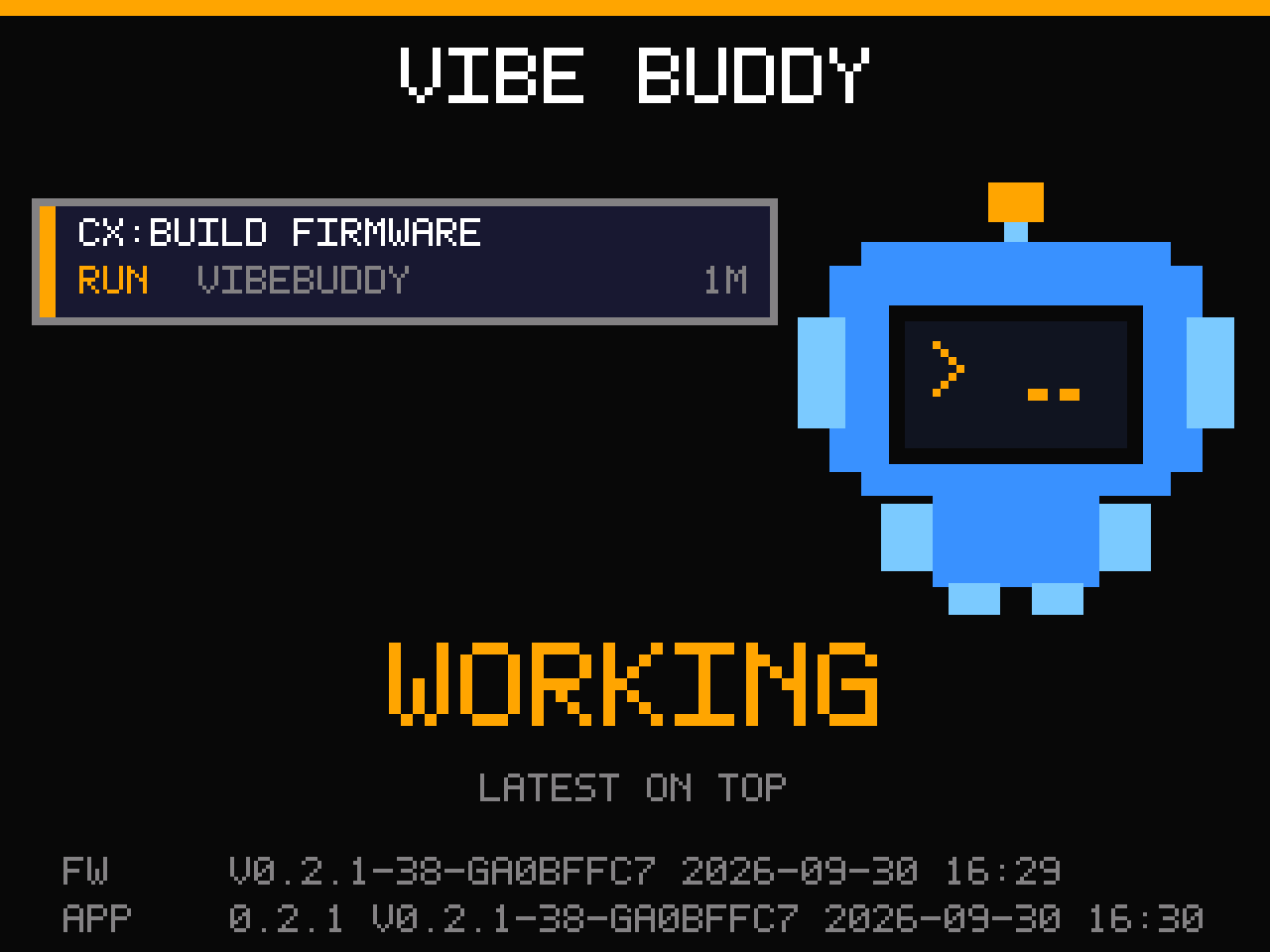
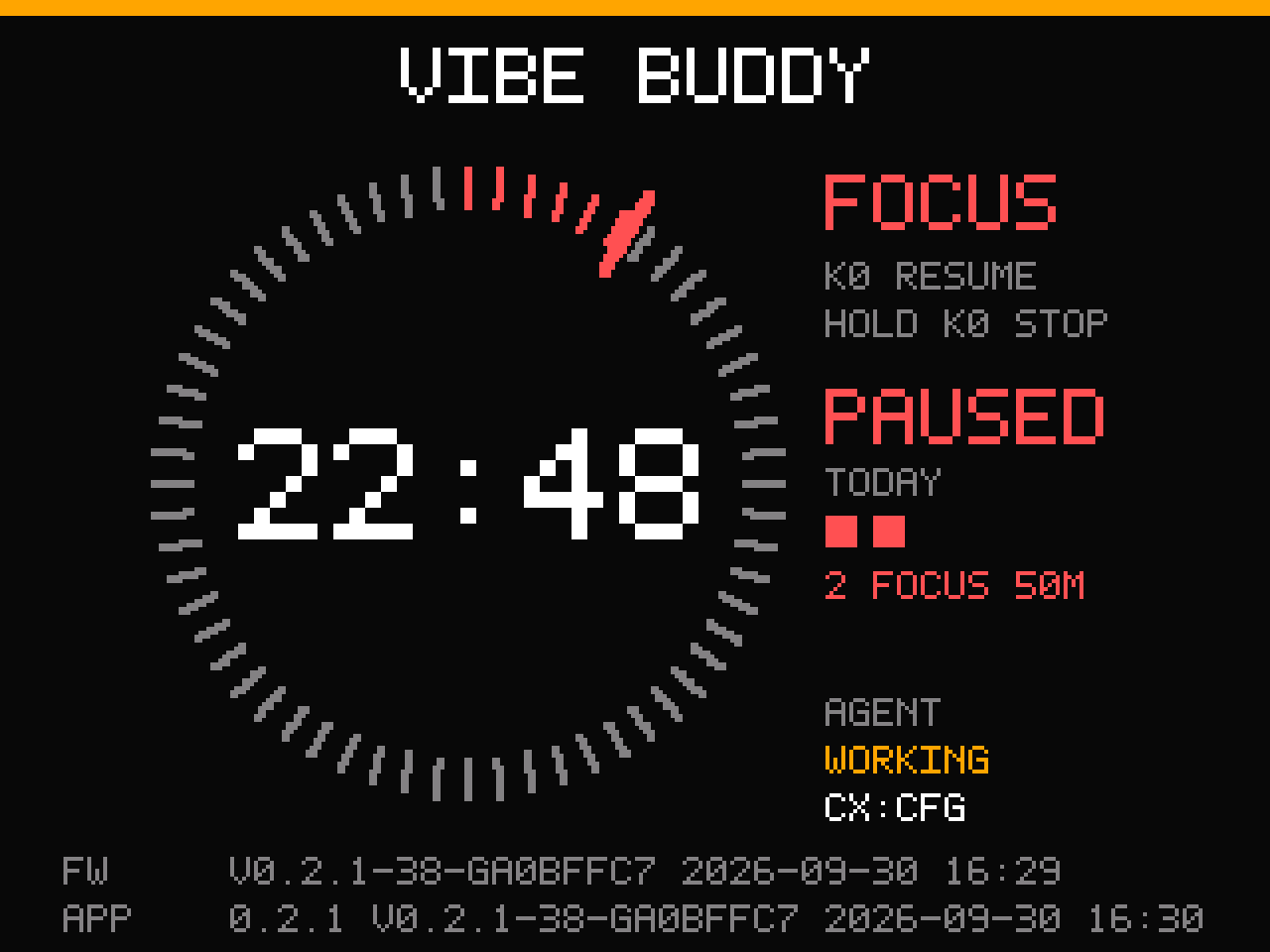
- ✓On duty (default): watches your agents and calls you when something happens.
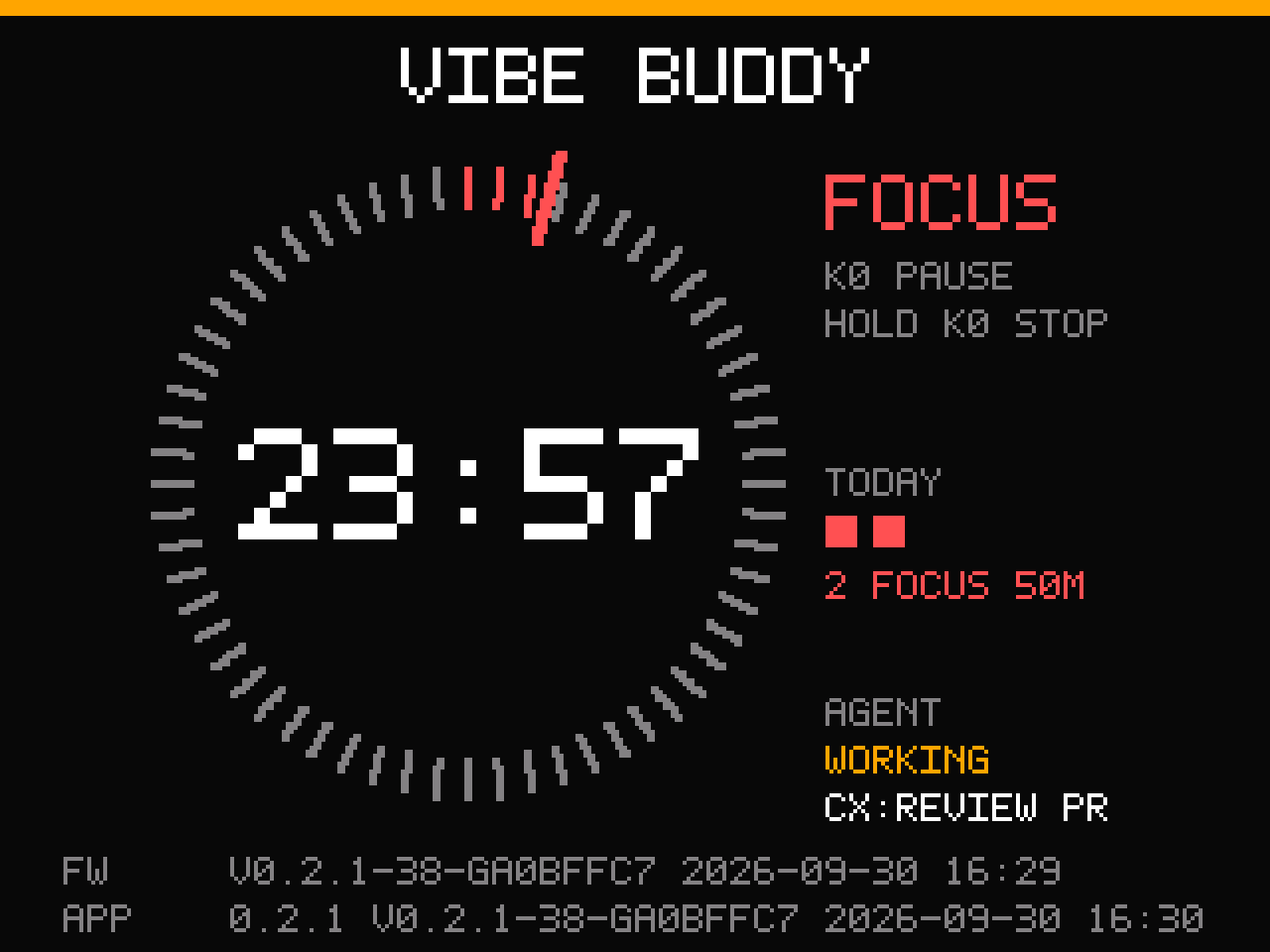
- ✓Pomodoro: 25 minutes of focus, 5 of break. Each phase ends with a chime and a spoken line, and the next one waits for you to press K0. It runs on the box, even without your computer.
- ✓Leisure: when nothing has happened for a while, the buddy goes off to play, later dozes, and at night turns its backlight off. Any agent activity or button press brings it back on duty.
What the screen means
Up to three task cards, newest on top. Each shows the agent (CC Claude Code, CX Codex, CI GitHub Actions), the session name, the project, and how long it has been in its current state.
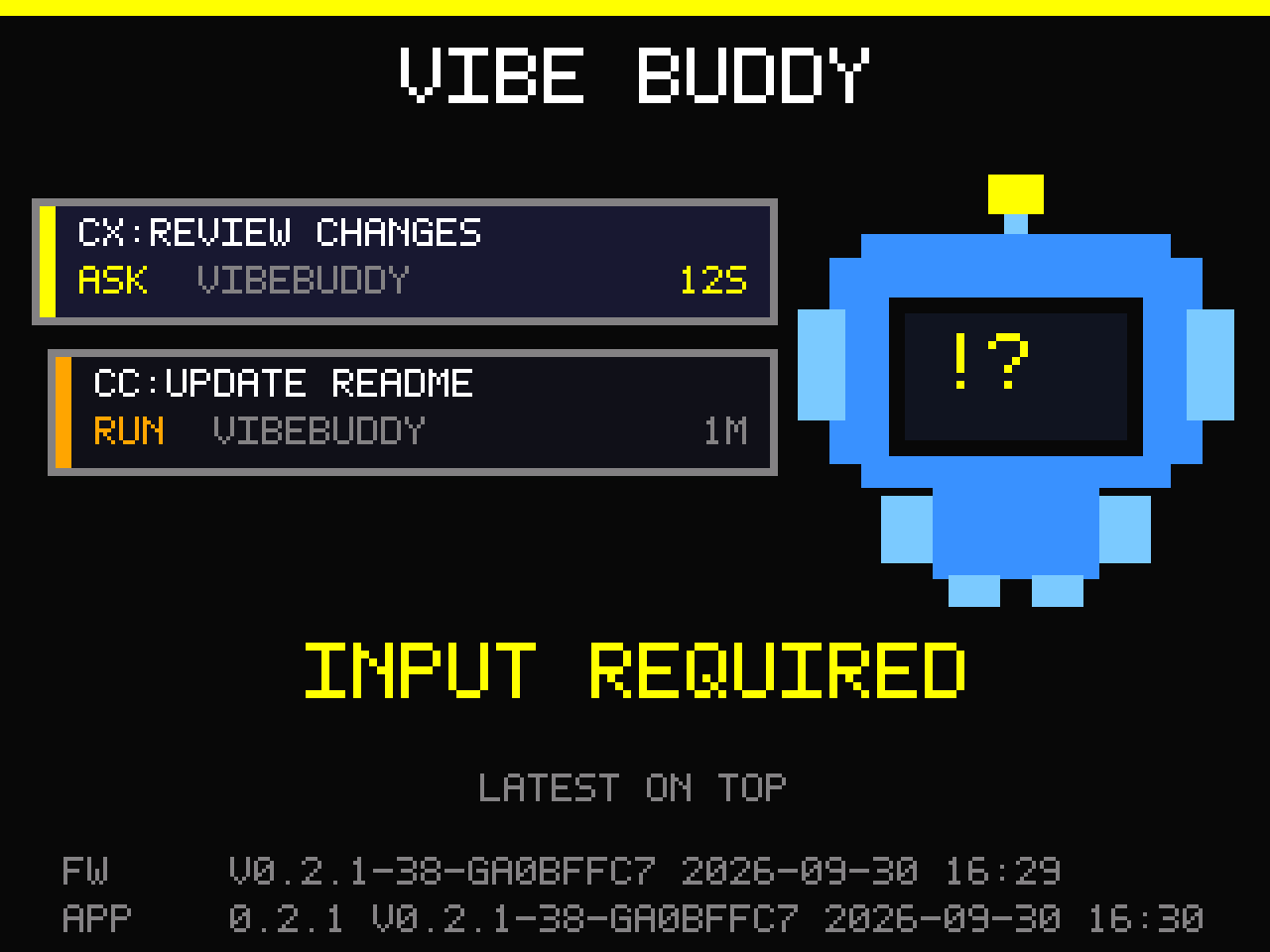
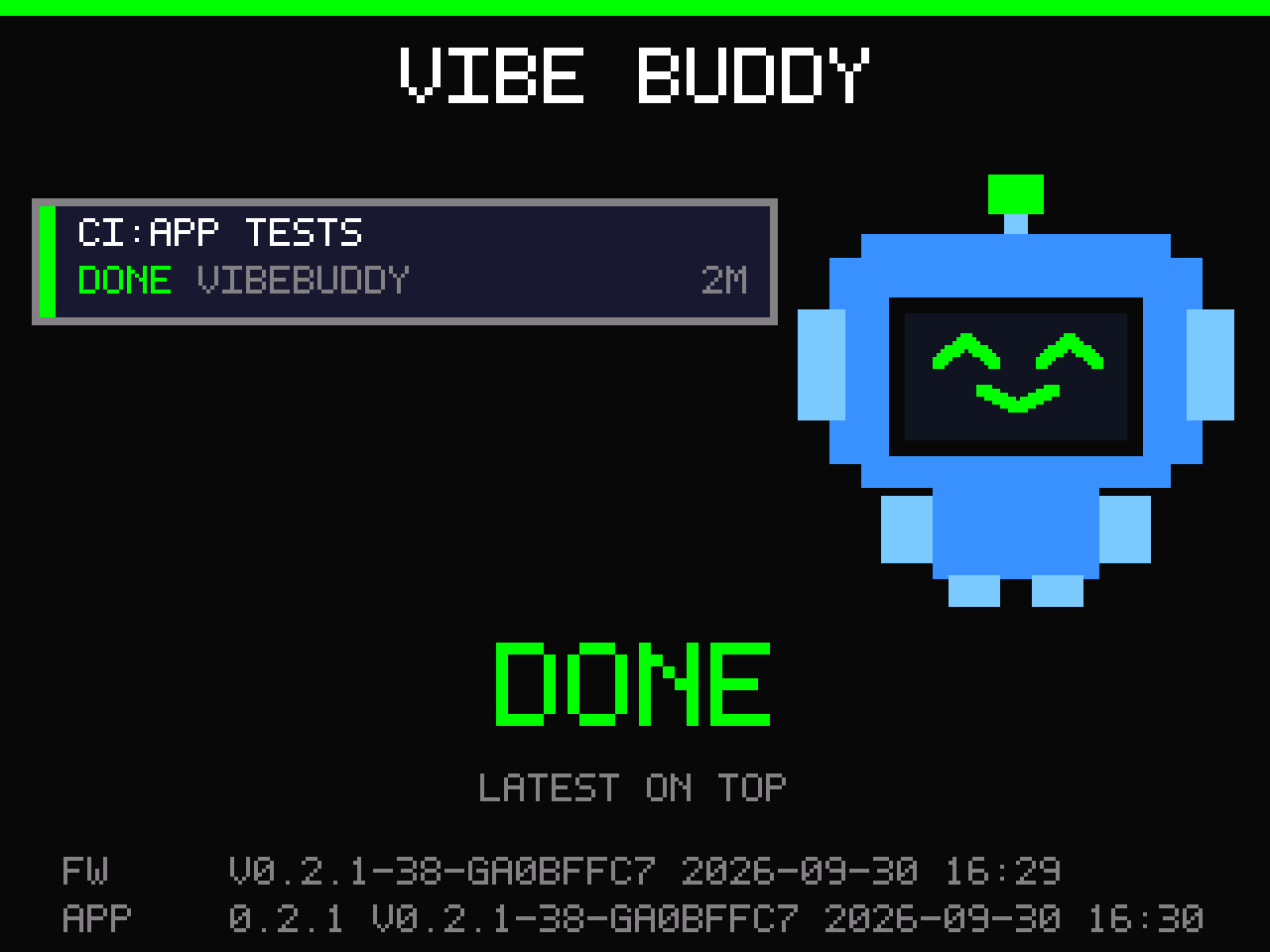
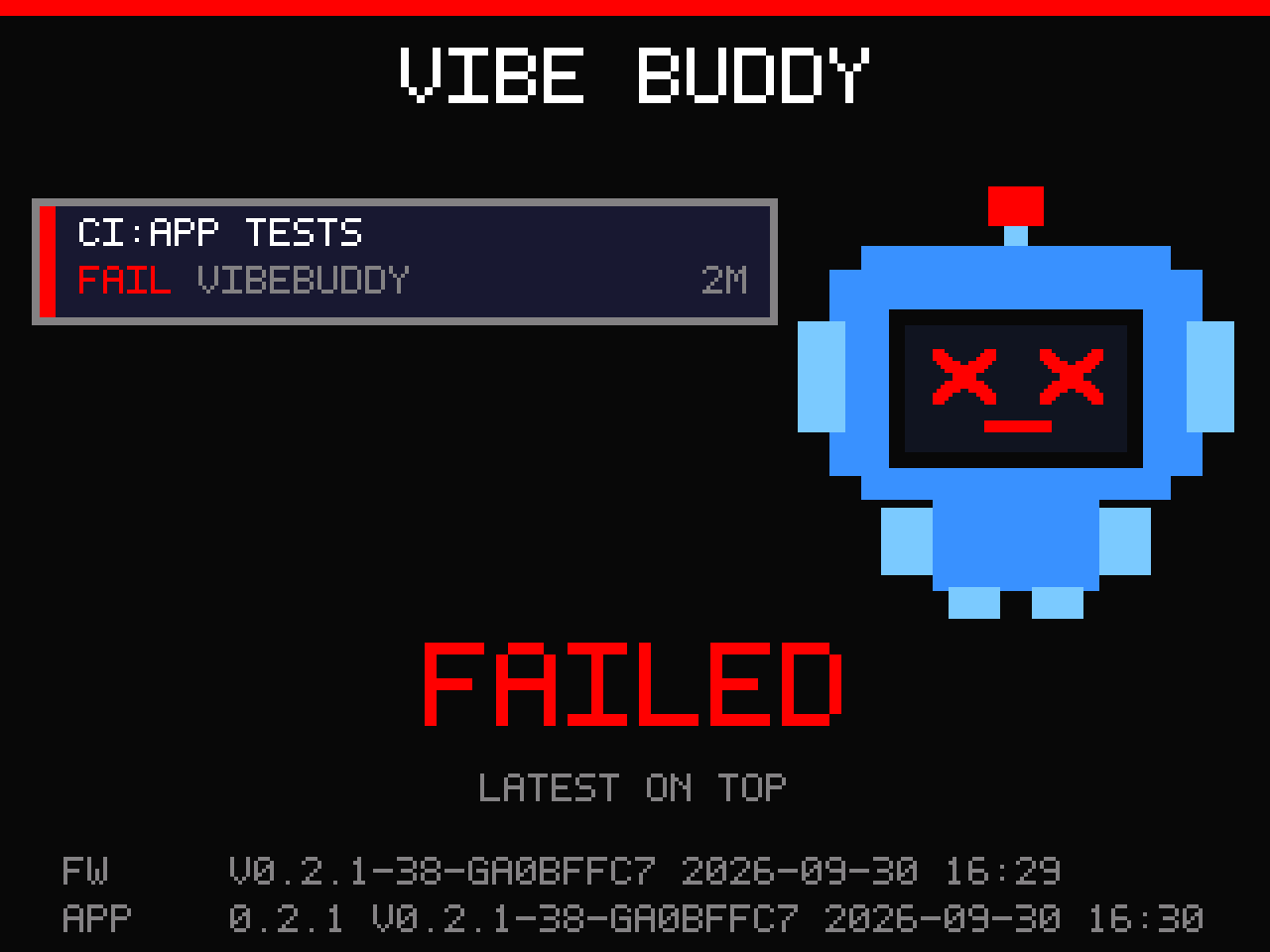
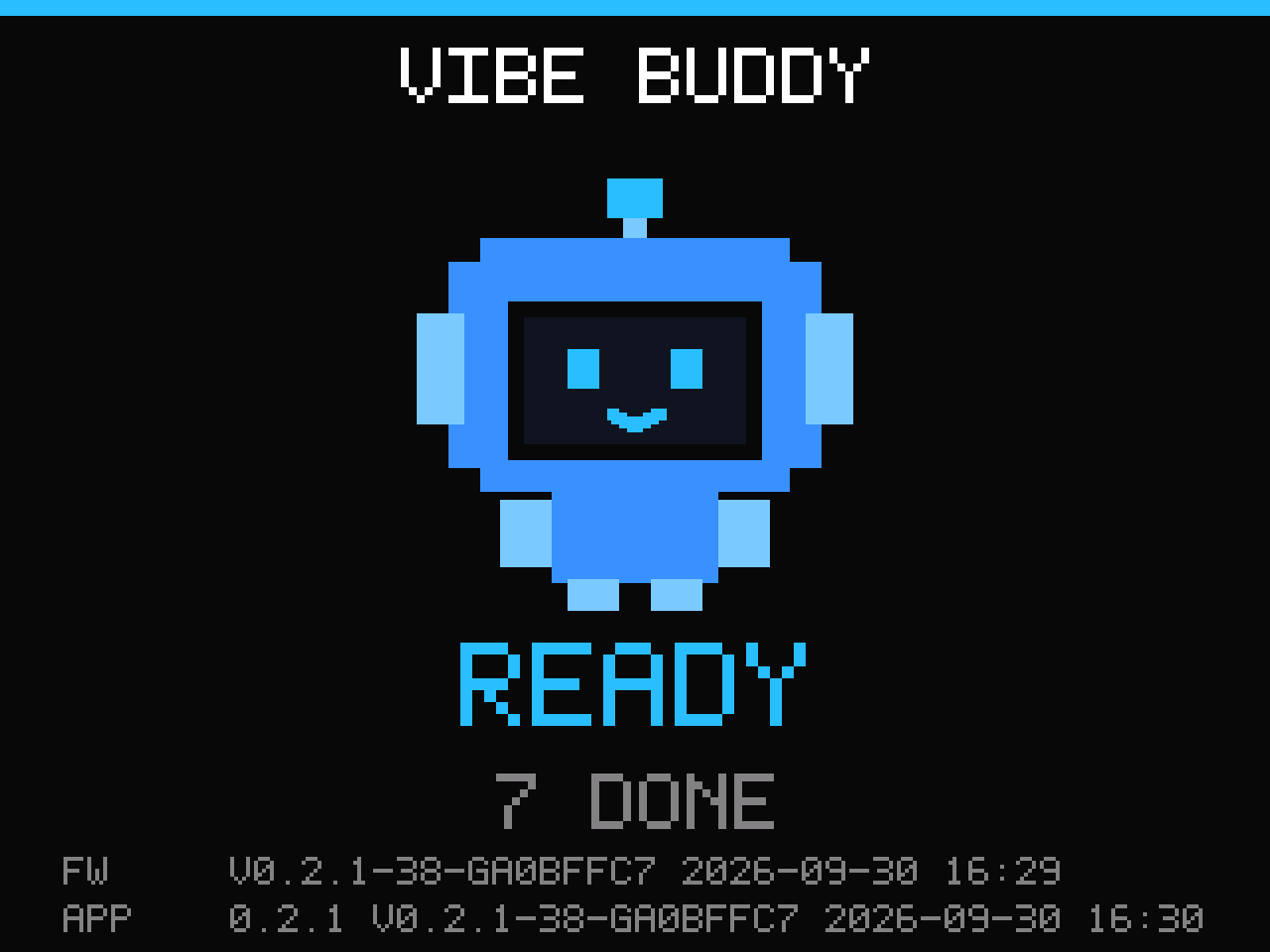
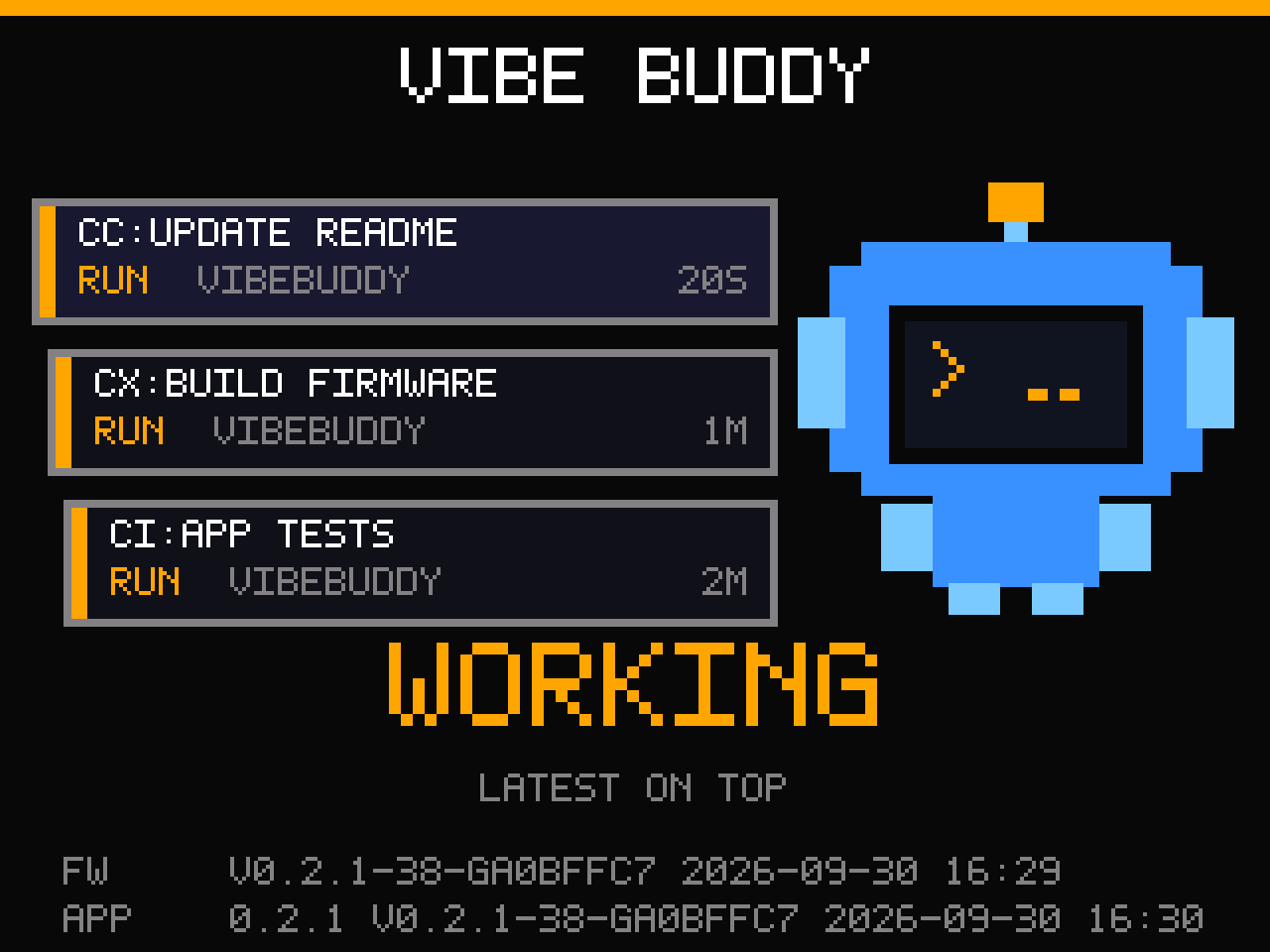
NO LINK: eyes closed and the screen goes gray when the box hasn't heard from your computer for 15 seconds. See Troubleshooting.
Troubleshooting
- ✓The app can't find the box. Use the included cable (some USB-C cables only charge), and click Allow if macOS asks whether to let the accessory connect.
- ✓Screen says NO LINK. Check the USB-C cable is plugged into your computer and the VibeBuddy app is running (menu bar icon). The box reconnects on its own once the link is back.
- ✓An agent's sessions don't appear. Open Settings → Agents: if the agent shows Not set up, click Connect and Write; if it's connected, try Repair.
- ✓No GitHub Actions cards. Run
gh auth statusto check you're signed in. Only repositories an agent worked in during the last hour are watched. - ✓No voice. If
MUTEis on screen, hold K2 for one second to unmute. Volume and voice are in Settings → Sound. - ✓K2 doesn't bring back my session. A session inside tmux or over SSH has no window to go back to.
- ✓Firmware out of date. Settings → Device offers the firmware bundled with your app (details).
Linux (experimental)
For x86_64 Linux with systemd; tested on Omarchy (Arch, Hyprland). Download VibeBuddy-<version>-linux-x86_64.tar.gz from the latest release, then:
tar xf VibeBuddy-<version>-linux-x86_64.tar.gz
cd VibeBuddy-<version>-linux-x86_64 && ./install.sh
The script installs the daemon as a systemd user service, adds the app to your launcher and login, and adds the hooks to Claude Code and Codex. Run it again to upgrade. Your user needs access to /dev/ttyACM* (group uucp on Arch, dialout on Debian and Ubuntu); the script tells you if it's missing. More options, including an Arch package, are in the README.